Check whether clock-ins and clock-outs happened as planned
When you want to record and check staff attendance
Staff clock in and out with the app, and administrators check and correct the records — whether clock-ins and clock-outs happened as scheduled is captured automatically.
✅ Before you start
- Have you finished setting up WiFi attendance? If not → When you want to set up your clinic for the first time
- Has the work schedule been confirmed? If not → When you want to manage staff shift plans
1. Have staff clock in and out
| Method | Requirement | Notes |
|---|---|---|
| WiFi ⭐ | Clinic WiFi setup completed | Most recommended |
| Terminal · Kiosk | Entrance terminal (Android kiosk app) or PC tray QR reader | Staff show the QR from the Terminal card in their app to the device. Enter the 6-digit code from the terminal screen under Clinic Settings → Clinic Info → Attendance settings → Kiosk devices and you're done (see 7.6 Registering Kiosk Devices) |
| Smartwatch ⌚ | Apple Watch or Wear OS watch + an Android BLE terminal | Turn on Mobile card check-in under Clinic Settings → Attendance settings and a card icon appears in the watch app. Tap it and hold the watch near the terminal — it records and vibrates |
| BLE beacon | Beacon device | Separate guidance required |
⌚ Clocking in with a smartwatch Works only in clinics where Mobile card check-in is turned on under Clinic Settings → Clinic Info → Attendance settings (a spare Android phone running the StepNote terminal app acts as the BLE terminal). In the watch app, tap the card icon and hold the watch near the terminal; on success it vibrates and the record is saved. If it fails, the watch shows one of "Turn on Bluetooth" · "Move closer to the terminal" · "Please try again" — just follow it. Showing a QR on the watch keeps working as before.
👥 Tell your staff "Open the StepNote app while connected to the clinic WiFi and you'll see the WiFi button. If it's 🟢 green, press it to record your clock-in or clock-out; if it's 🔴 red, you're not connected to the WiFi and pressing it won't check you in (an error notice is shown). You can press it multiple times on the same day — the first record counts as clock-in, and the last as clock-out. If you turn on auto check-in via the ⚙ next to the WiFi button, records are made automatically just by connecting to the WiFi, but it may not work if the app is fully closed — so remind staff to check Today's records below the card from time to time."
2. Check the records on the administrator screen
Go to Attendance & leave → Attendance in the left menu.
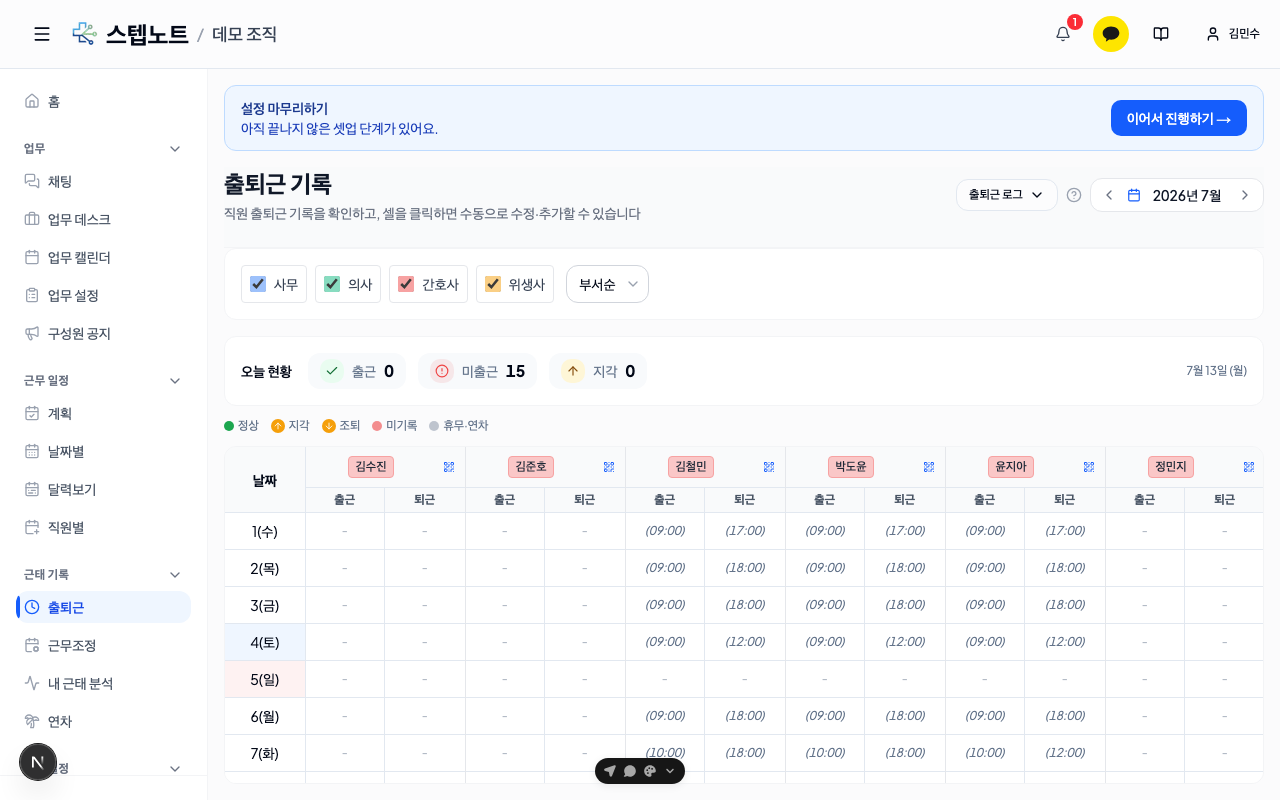
At the top of the current month's screen there is a Today's Status strip showing the number of members clocked in · not clocked in · late as of today (it isn't shown when viewing other months).
Each cell in the table is displayed differently depending on its status.
| Status | How it's shown |
|---|---|
| On time | Time only |
| Late | ↑ icon + yellow text |
| Left early | ↓ icon + yellow text |
| No record | Italics + scheduled time (distinguishing absence from a day off) |
| Day off · annual leave | Gray text |
A legend summarizing the same 5 statuses is shown just above the table. Use the Department filter at the top to narrow down by team, and press the Attendance Log button in the header to expand individual record logs.
Members with No attendance tracking checked don't appear on this screen (set in the user info edit of step 4 in When you want to organize departments and staff).
3. Fix missing records
Click a member's clock-in or clock-out cell to open the Add manual attendance record modal.
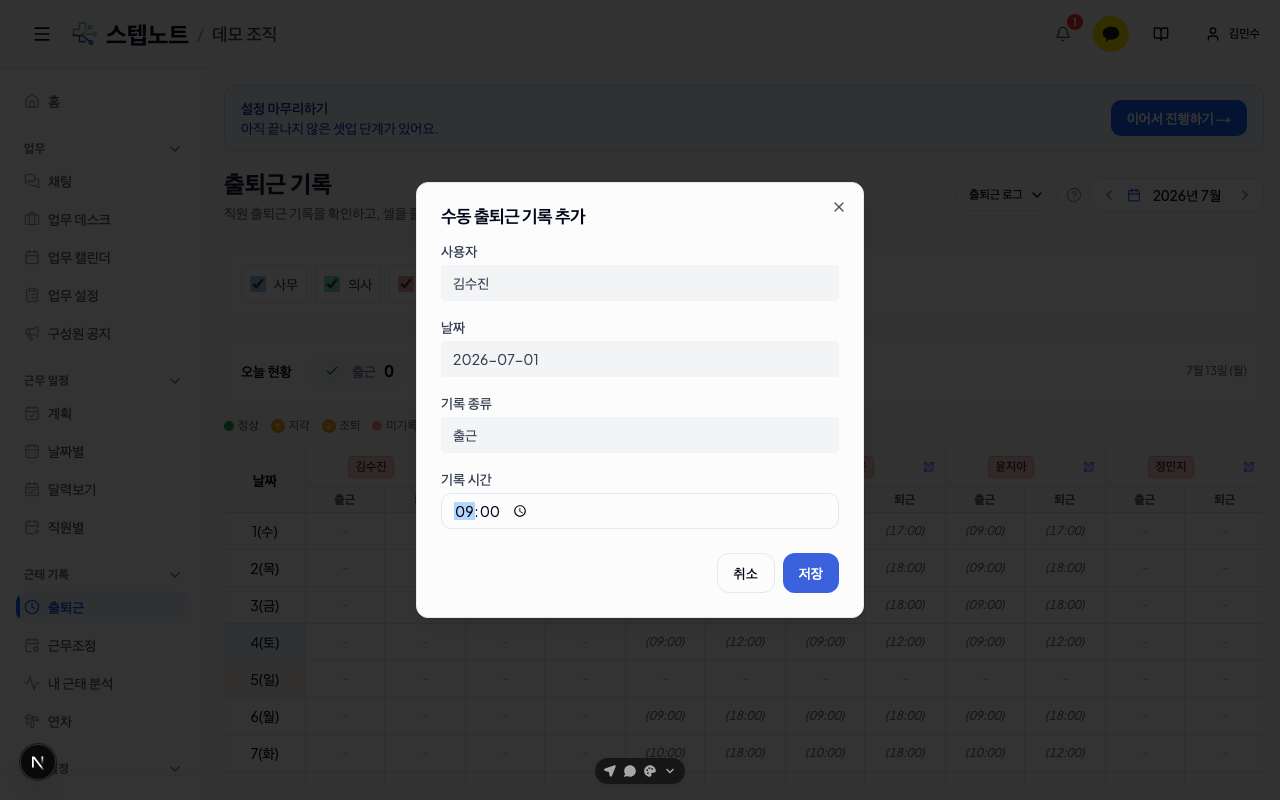
The user, date, and record type (clock in/out) are already filled in — just enter the desired record time and press Save.
💡 If someone accidentally clocked in late and got marked as late even though they actually arrived on time, you can correct it by editing the time directly.
4. Handle exceptions
💡 What is a shift adjustment? A feature for separately recording the added or deducted hours on days when actual work differed from the set working hours, so they're reflected in settlement. There are two types: overtime work and reduced work.
When a single day needs different working hours — click the date cell (on the left) in the table to open the Set working hours window. You can set two ranges — clinic working hours (the clinic-wide baseline for that day, editable by administrators only) and personal working hours (an exception applied to just one member) — each by morning/afternoon/evening blocks, or turn them off with "No work." Dates that already have settings are marked with a small dot in the table.
When reflecting overtime or reduced work in settlement — in Attendance & leave → Shift Adjustment in the left menu, press the Add shift adjustment button, enter the worker, date, time (minutes), adjustment type (overtime work/reduced work), and an optional memo, then press Add record. Saved entries are counted as added or deducted working hours in the monthly settlement.
When you're done
- Next: When you want to manage staff payroll
- For late-arrival and annual leave statistics: When you want to check your clinic's statistics