See lateness, annual leave, and work status at a glance from accumulated records
When you want to check your clinic statistics
View the accumulated attendance records from four angles: dashboard, attendance summary, rest patterns, and personal analysis.
✅ Before you start
- Are clock-in and clock-out records accumulating? If not → When you want to record and check staff attendance
- Has the work schedule been confirmed? If not → When you want to manage staff shift plans
1. Open the statistics screen
Go to Clinic Settings → Statistics in the left menu. This menu is visible only to administrators with schedule view permission (schedule:read) — for regular staff without that permission, the statistics menu doesn't appear at all.
At the top are 4 sub-tabs — Dashboard / Attendance Summary / Rest Patterns / Personal Attendance Analysis — with the Dashboard open by default. The Dashboard, Attendance Summary, and Rest Patterns sub-tabs share a filter bar for changing the viewing period, with This month / Last month / This year presets and direct start/end date input (Personal Attendance Analysis uses monthly/yearly selection instead of presets — see step 5).
2. See a summary of this month on the dashboard
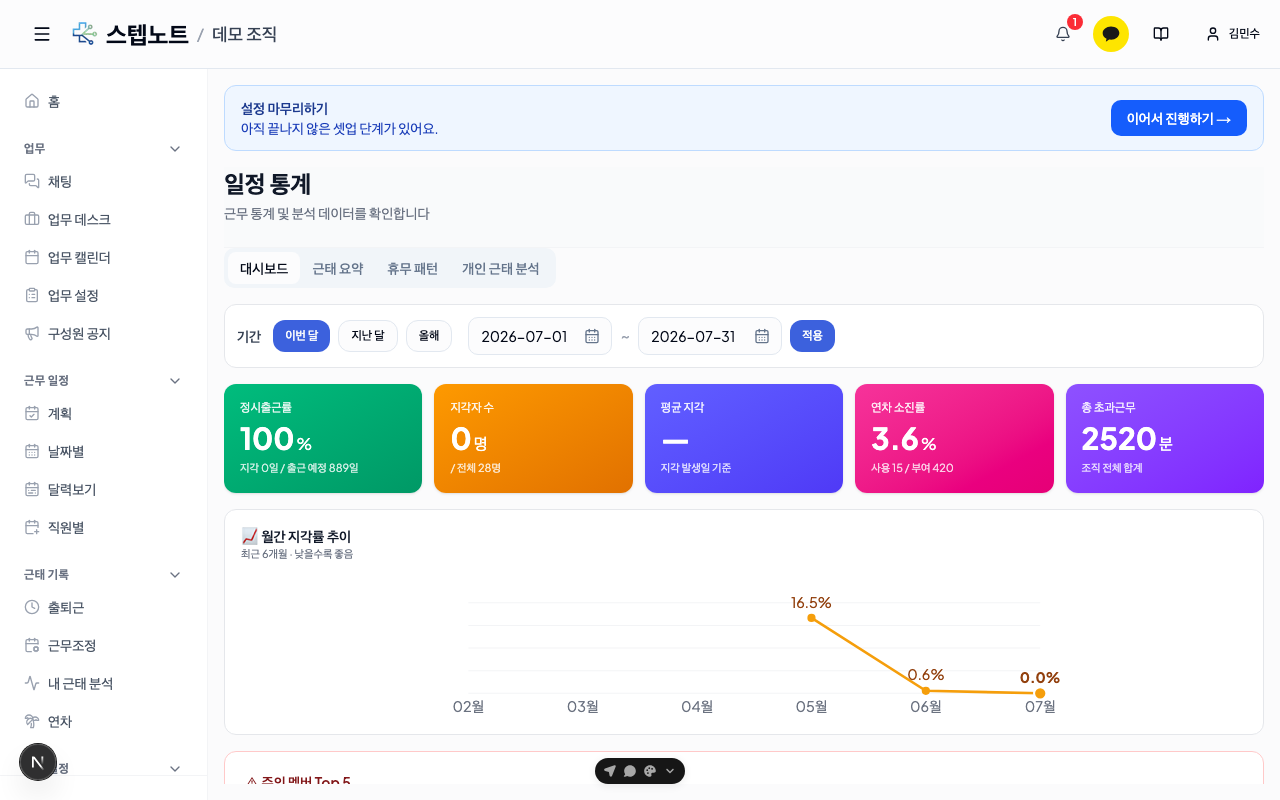
Select a period and 5 cards summarize the on-time rate · number of late arrivals · average lateness · annual leave consumption rate · total overtime, followed by a line chart of the monthly lateness-rate trend over the last 6 months and a Top 5 members to watch table (by number of late arrivals). Click a row in the members-to-watch table to jump straight to that staff member's Personal Attendance Analysis sub-tab.
3. See per-person and per-date tallies in the attendance summary
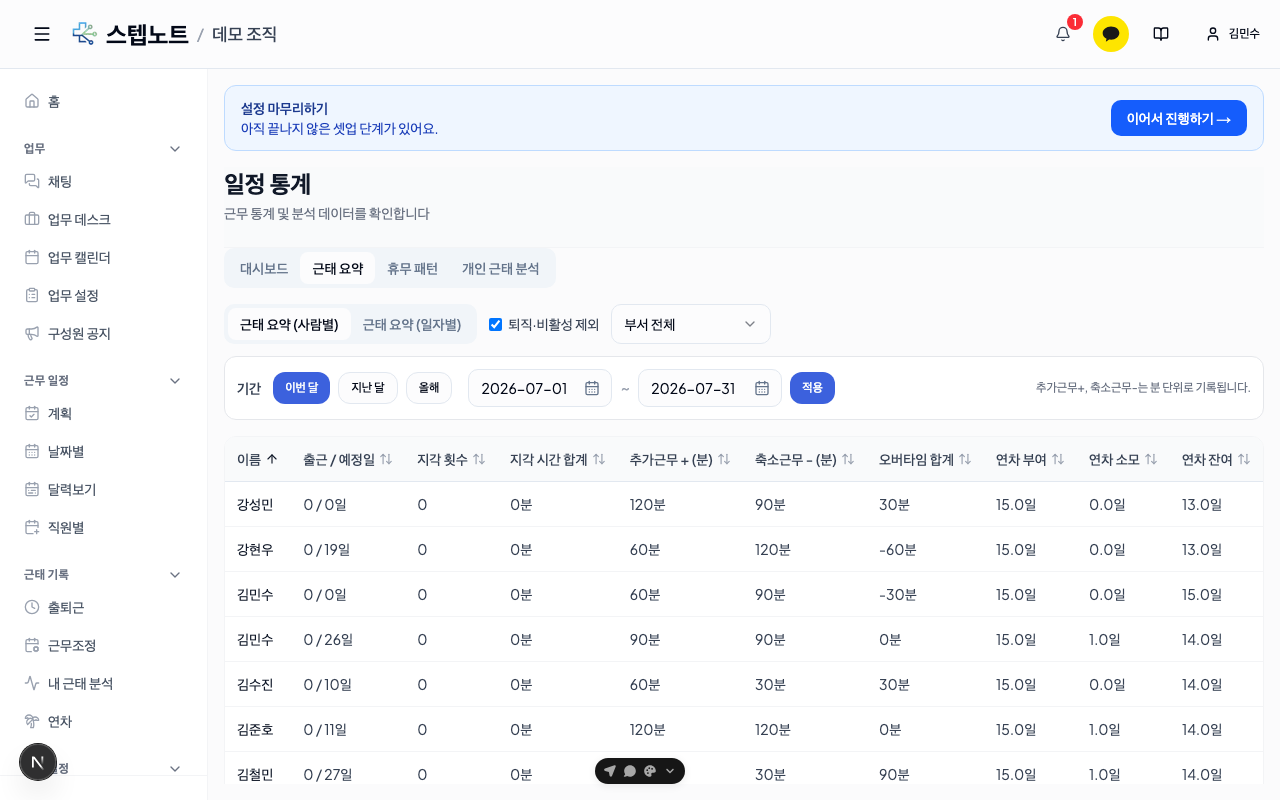
You can switch between two views, Attendance summary (by person) / Attendance summary (by date), with an Exclude former/inactive checkbox (on by default) and a department filter next to them. The by-person view shows each staff member's clocked-in/scheduled days, late count, total lateness time, overtime work, reduced work, total overtime, and annual leave granted/used/remaining in a single table, and each header can be clicked to sort.
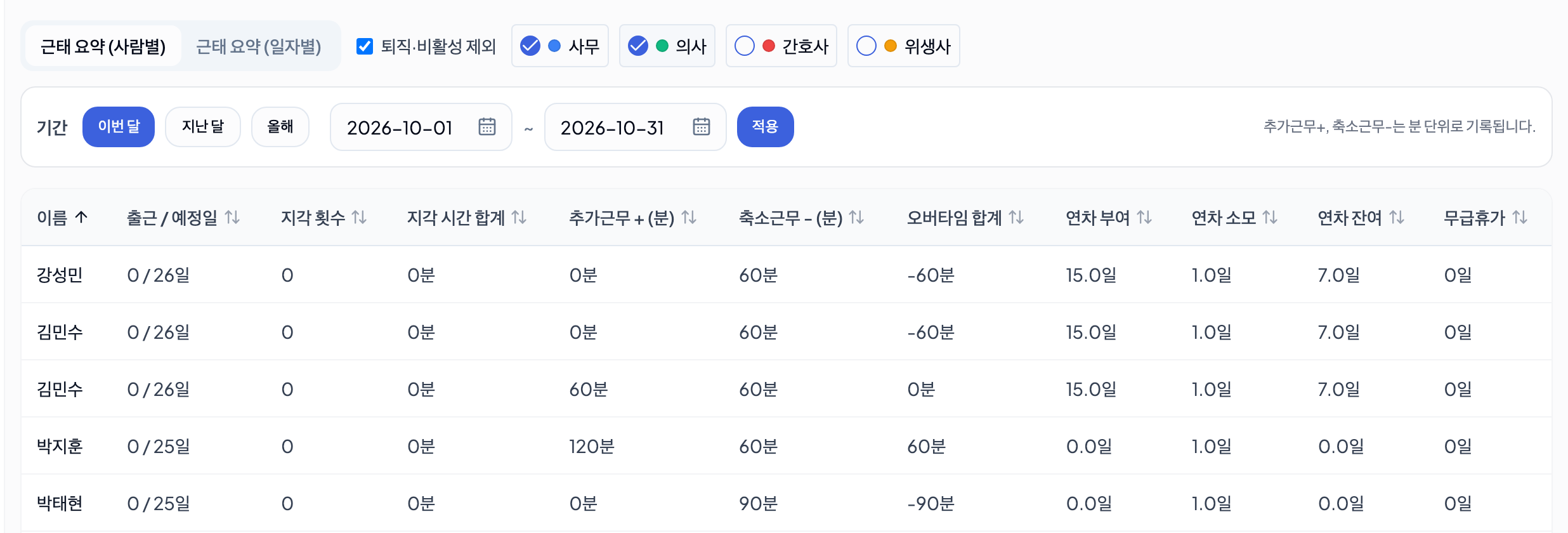
💡 The department filter is a set of checkboxes, so you can pick several departments at once (e.g. Treatment room + Front desk). With nothing checked, everyone is shown, and a No department entry appears if any staff have no department. Attendance summary, rest patterns, and personal analysis all work the same way.
4. See per-member and per-weekday distribution in rest patterns
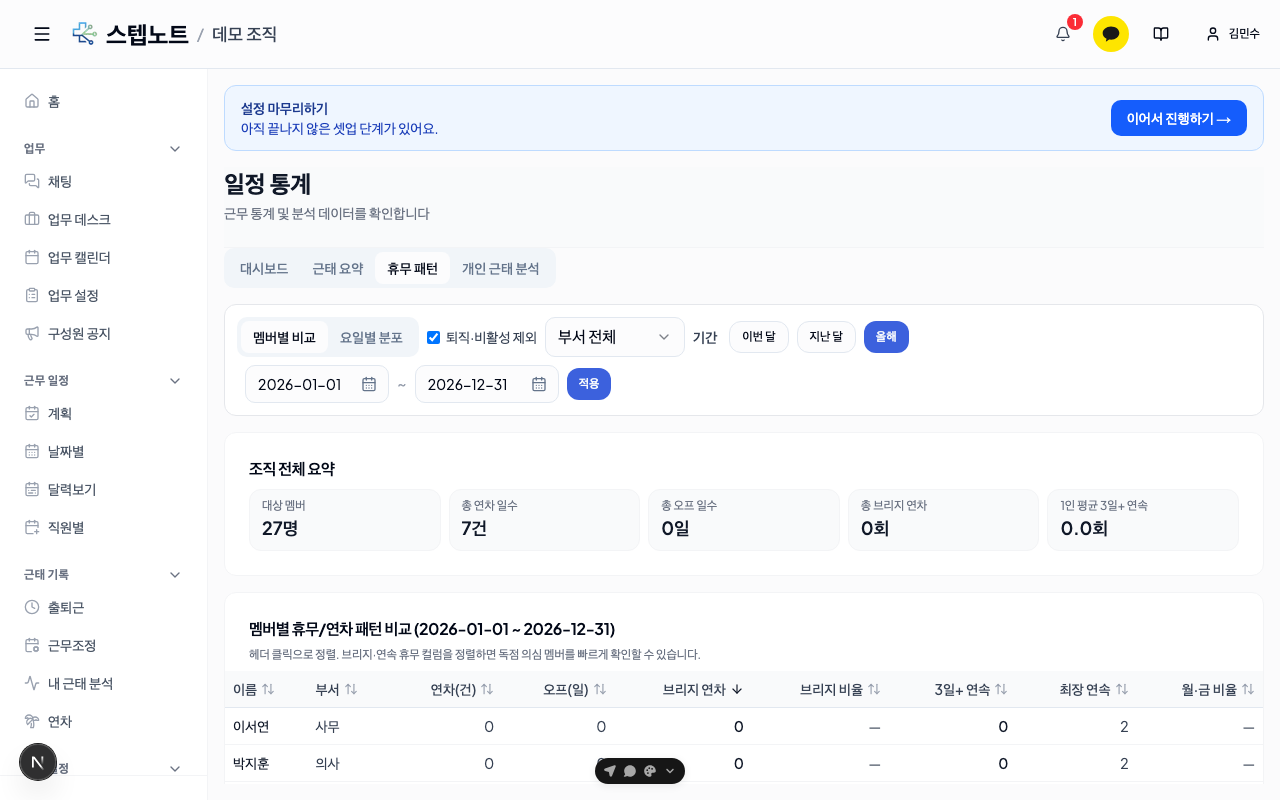
The default viewing period is this year. There are two views, By member comparison / By weekday distribution. The member comparison displays an organization-wide summary — members covered, total annual leave days, total off days, total bridge annual leave, and the average number of 3-or-more-day consecutive breaks per person — together with a sortable table comparing each staff member's annual leave, offs, bridge annual leave, longest consecutive break, and more.
5. Pick one person for a detailed look in personal attendance analysis
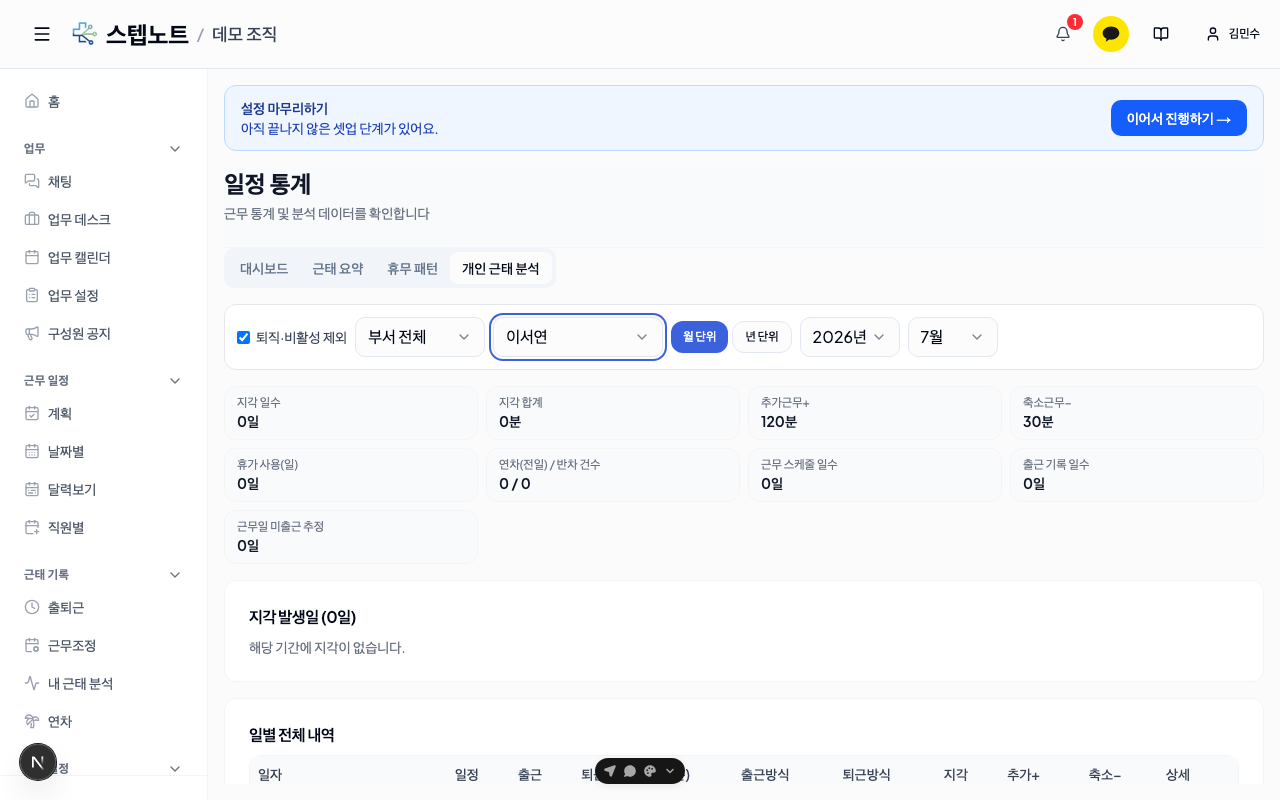
Narrow down with the department filter (several departments can be selected at once), then select a staff member in the Name dropdown (default is "None selected") to display their late days, total lateness, overtime work, reduced work, leave used (days), annual leave (full-day)/half-day counts, scheduled workdays, days with clock-in records, and more, followed by the dates lateness occurred and the full day-by-day breakdown below. The viewing unit can be switched between monthly / yearly.
When you're done
- If the annual leave consumption rate or balance looks off: When you want to manage staff annual leave
- If records are missing: When you want to record and check staff attendance