Decide in advance when days off and annual leave fall
When you want to manage staff annual leave
Grant annual leave, let staff request it at the planning stage, and let administrators check granted, used, and remaining balances.
✅ Before you start
- Have you finished adding staff? If not → When you want to organize departments and staff
- Have you decided the annual leave unit (full day/half day)? If not → When you want to set up your clinic for the first time
1. Grant annual leave
Go to Attendance & leave → Annual leave in the left menu. With leave view permission (leave:read), four sub-tabs — My Leave / Leave Overview / Monthly Overview / Usage History — appear at the top, and administrators land on the Leave Overview sub-tab by default. Regular staff without the permission see only the My Leave sub-tab.
💡 If some staff aren't ready yet, a yellow banner appears above the leave overview — "N staff without a start date — leave can't be calculated without a start date" comes with an Add start date button, and "N staff with no leave granted yet — grant leave first so it can be used in the schedule" comes with a Grant leave button, so you can fix it on the spot. The Go to leave button in step 2 of the Get started tab, Grant leave in advance, brings you here.
Annual leave is calculated based on each member's individual start date — a one-year contract period is created from each member's start date, and grants, usage, deductions, and balances are all tallied within that period. This basis is shown at the top of the screen and in a badge next to the filters. That's why the start date must be entered first — for members without a start date, an "Start date required" notice appears instead of numbers, and anyone with leave management permission (leave:manage) can enter it right there with the Enter start date button. The warning banner above the table also automatically lists N members missing a start date and N members needing a re-grant (members with a start date but no grant for the current contract period).
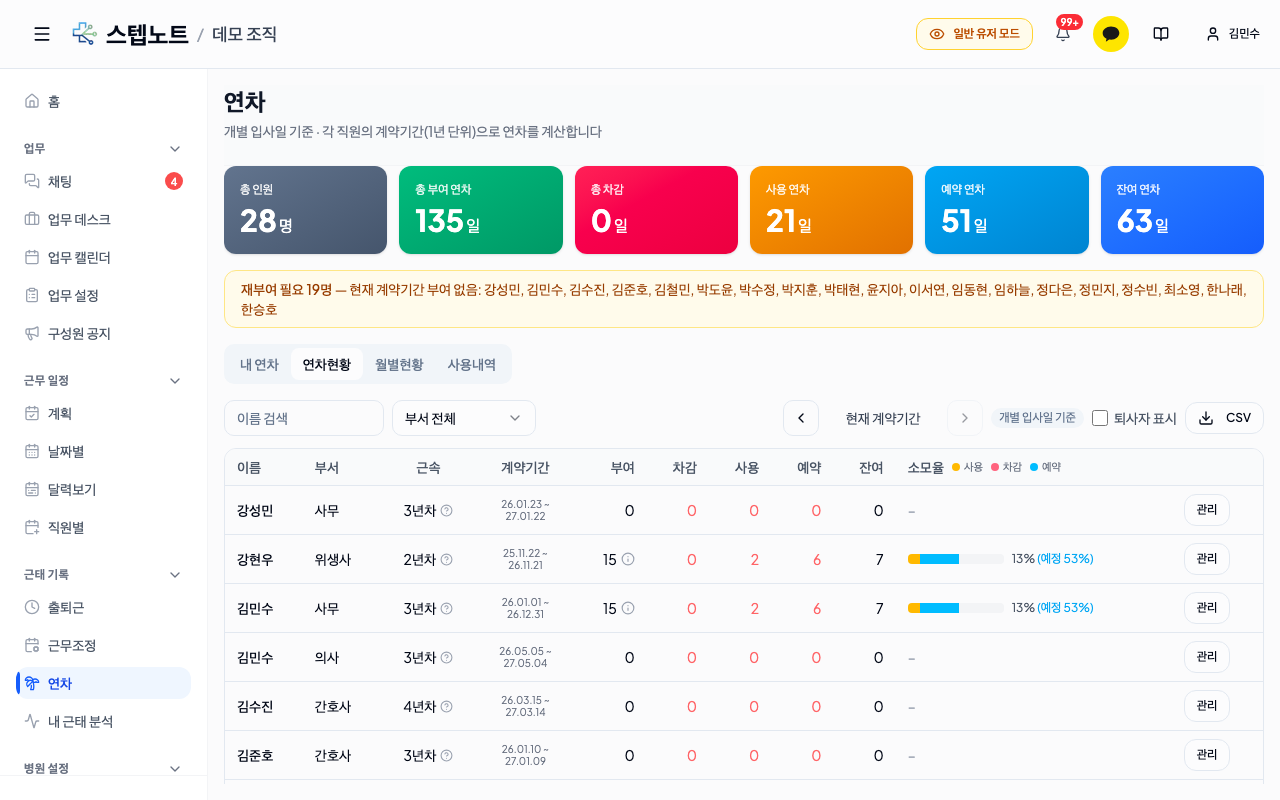
The Leave Overview table shows each member's tenure (year) · contract period · granted · deducted · used · reserved · remaining days and their consumption rate. By default it's based on the current contract period (only valid, unexpired grants), so the numbers on screen always match what's "actually usable right now." The Manage button at the right end of a row (or clicking the row) opens that member's leave history modal, and the Grant/Deduct Leave button inside it opens the grant/deduct modal.
Hover over the ⓘ icon next to the granted number (tap on mobile) to see a popover breaking down each valid grant by grant date, expiry date, and remainder. Grants expiring within 30 days are highlighted, and if there are two or more grants, a totals row is added at the bottom.
The consumption rate column treats the grant as 100% and stacks used (orange) · deducted (red) · reserved (light blue) as differently colored bars. Next to the bar, the consumption so far (used + deducted) is shown as a %, with the projected rate including reservations in parentheses when it differs. If usage exceeds the grant and the balance goes negative, it's highlighted in red.
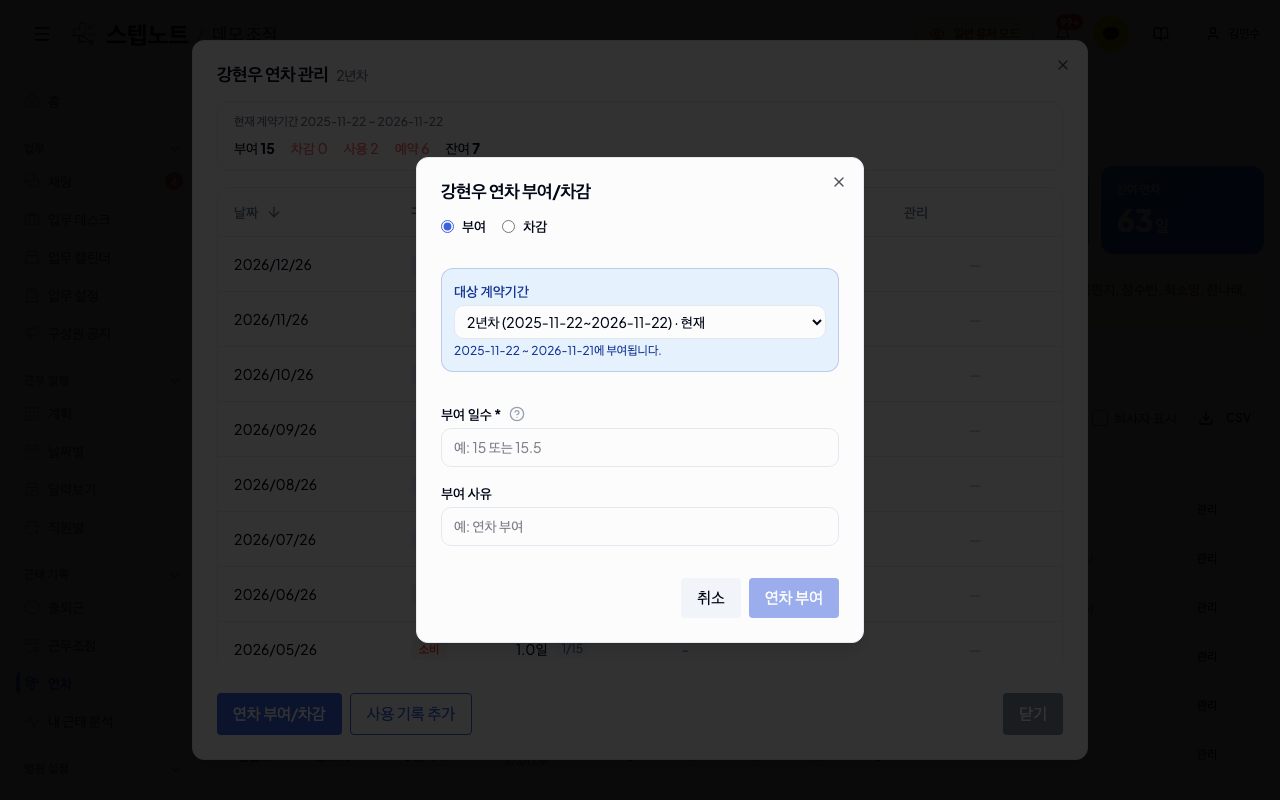
- Grant / Deduct — chosen with radio buttons. Choosing deduct makes the reason field required.
- Target contract period — instead of typing the expiry date manually, you pick a period from the list of contract periods calculated from the start date (default = the contract period you're currently viewing). Picking a period automatically sets the effective and expiry dates to that period, preventing date mistakes (off-by-one days, out-of-period entries). You can also pick a past contract period for retroactive grants or settlement deductions for past periods.
- Days — in 0.5-day increments (e.g. 15, 15.5, 0.5)
- Reason — optional (required for deductions)
- Only members without a start date enter the effective and expiry dates manually as before. Unused leave past its expiry date is automatically excluded from the balance.
If a grant or deduction you already entered has a typo, don't fix it by adding a new offsetting deduction — use the Edit button on that row in the leave history modal to correct the days, reason, or contract period directly (deletion is also possible).
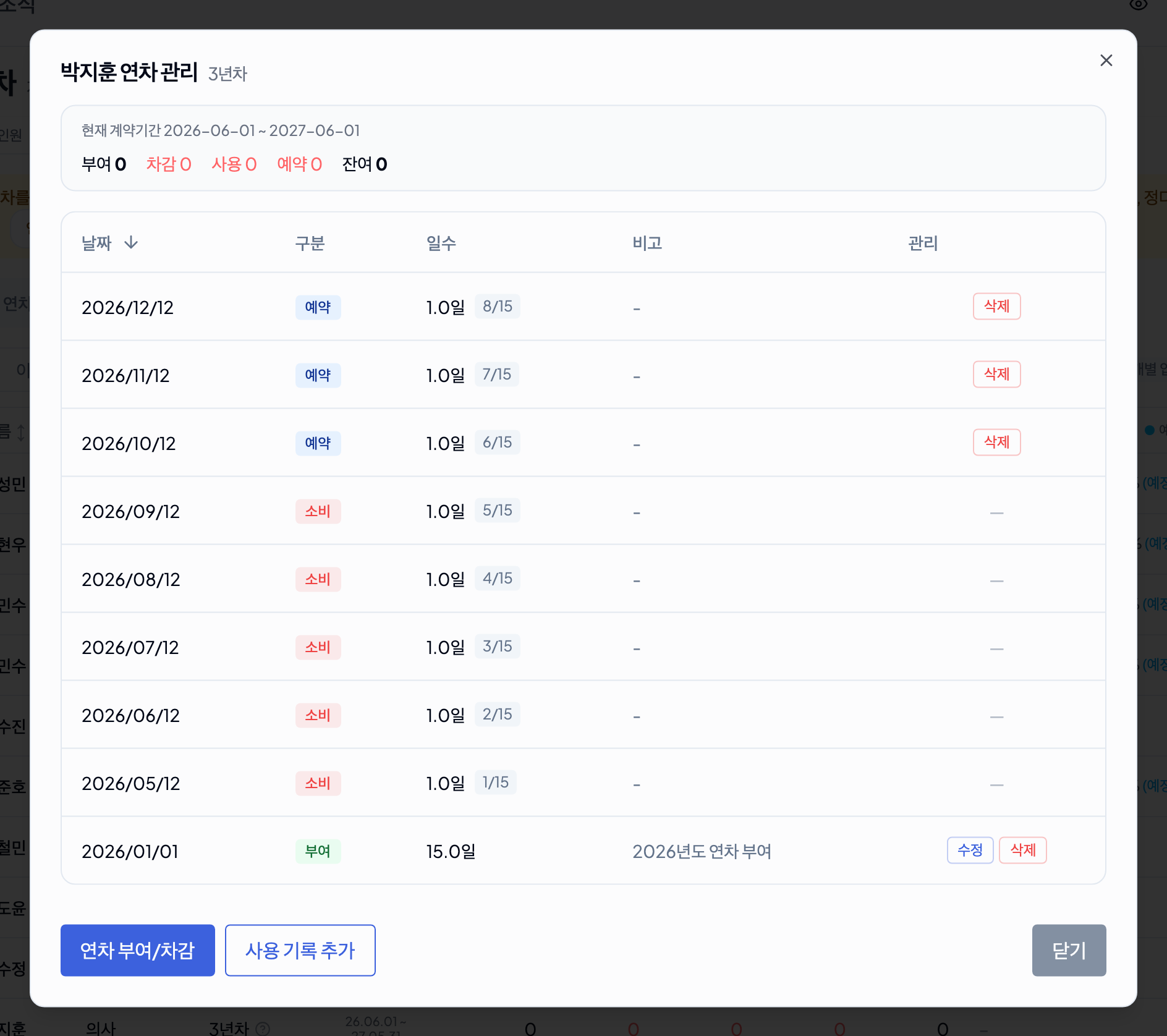
In the same modal, rows for leave on dates that have not arrived yet (reserved) have a Delete button. When a staff member cancels leave after the schedule has already been confirmed, you can remove it here without unconfirming the schedule — the confirmation dialog reads "Delete {date} reserved leave (N days) from the schedule? The reserved days will be returned to the remaining balance.", and deleting it removes that day's leave from the schedule and restores the balance. If the leave had already been approved, a note adds "No deletion notice is sent, so please inform the staff member separately." Leave that expired unused is listed as one Expired row per grant.
💡 Full-day annual leave vs half-day leave If the annual leave unit in the Clinic Info tab is set to "Full day," staff can only take annual leave as whole days in the plan screen. Set to "Half day," they can also take 0.5-day units, choosing morning or afternoon. The detailed selection screen in the plan also shows the evening block, but evening alone cannot be registered as annual leave — if you register afternoon leave on a day with an evening shift, the evening block is bundled into the leave as well, and the balance calculation still counts this combination as only a 0.5-day afternoon half-day. In other words, the annual leave deduction unit is always one of full day / morning half-day / afternoon half-day.
2. Staff use their annual leave
Annual leave usage isn't entered directly on this screen — staff request it themselves at the shift planning stage. When the administrator confirms the plan, the request is applied to the schedule and deducted as annual leave. For details on the plan screen, see step 1 of When you want to manage staff shift plans.
⚠️ If you try to add more leave than remains, the administrator sees a warning dialog. Add leave anyway takes the balance negative, and granting leave later fills it back in. See step 1 of When you want to manage staff work schedules for details.
👥 Tell your staff "In the Work schedule → Shift Planner screen (the same screen in the mobile app), tap the date you want to rest on in the calendar and select Full-day annual leave. If you're only resting half the day — morning or afternoon — use Detailed selection to specify a morning or afternoon half-day."
Entries made at the planning stage alone don't show up in the leave overview — they're only counted once the administrator confirms the schedule; if the confirmed date is in the future it shows as "reserved," and if it's today or earlier, as "used."
If annual leave taken in the past is missing from the work schedule (an omission), don't balance it with a deduction — use the Add usage record button in the leave history modal to record it directly on the work schedule. Pick the date and type (full day / morning half-day / afternoon half-day) and it's recorded as usage rather than a deduction, so it's also correctly counted in the usage history and monthly overview statistics.
3. Check leave balances
Check the status in the remaining sub-tabs of the same Attendance & leave → Annual leave screen.
| Sub-tab | Who sees it | Contents |
|---|---|---|
| My Leave | Everyone | A summary of your own granted, used, reserved, remaining days and remaining rate, plus personal history — use the contract period arrows (◀ ▶) to view past contract periods |
| Leave Overview | leave:read holders | All-staff table — the contract period arrows move everyone together to their respective previous/past contract periods |
| Monthly Overview | leave:read holders | Pick a year and view a members × 12 months usage matrix |
| Usage History | leave:read holders | Set a date range and view a list of name, department, date, type, days, and reason |
The ◀ Current contract period ▶ arrows at the top of the Leave Overview sub-tab shift the viewing period. Because contract periods differ per person, everyone moves in parallel to "their own previous contract period" rather than to a specific date — for example, pressing ◀ once compares every member's previous contract period grants, usage, and balance on one screen. When viewing a past period, an extra Expired column shows the days that lapsed unused (for past-period settlement and audits). Members who weren't employed then, and so have no contract period, appear as empty rows.
💡 It's normal for the Leave Overview and Monthly Overview numbers to differ. The Leave Overview is based on each member's contract period (their individual entitlement), while the Monthly Overview and Usage History are based on the calendar year (the organization's usage statistics) — the tallying axes are different.
The Leave Overview sub-tab has a Show former members checkbox next to the name search and department filter. It's unchecked by default, so former members are hidden from the list; checking it shows them with a "Former" badge (the other sub-tabs don't have this checkbox). Members whose remaining leave has dropped to 5 days or fewer are automatically listed by name and remaining days in the warning banner above the table, and members with a negative balance (overuse) are highlighted in red in the table. On the leave:read sub-tabs (Leave Overview · Monthly Overview · Usage History), the CSV button at the top right downloads the table with the current filters applied — the Leave Overview CSV includes the same tenure, contract period, and consumption rate columns as the screen, and the filename carries the contract period being viewed (e.g. annual-leave-overview_current-contract-period.csv).
When you're done
- Manage alongside shift plans: When you want to manage staff shift plans
- View as statistics: When you want to check your clinic's statistics