9. Work board & chat
9. Work Board · Group Chat
Audience: Admins (Admin/Owner), regular staff (Member) — only shown for organizations with the work collaboration feature enabled. It's on by default for newly created clinics. Clinics created before September 2026 may not have it enabled yet (see the FAQ below).
Purpose
Manage non-clinical work information (announcements, work instructions, reports, etc.) in a structured way as posts rather than chat, and communicate with your team via group chat.
| Tab | Role |
|---|---|
| Work Desk | Write and read posts — supports rich content such as file attachments, videos, and link cards |
| Chat | Group chat rooms — real-time messaging 1:1 or with multiple team members, plus polls, draws, calendar sharing, and birthday alerts |
| Work Settings | Board templates and settings (admin only) |
Accessed from the Work section in the sidebar. The Work Calendar (schedule sharing) and Member Announcements tabs are also in the same section. Polls, draws, calendar sharing, and birthday alerts aren't a separate tab — they're all created and viewed inside chat (see 9.3).
💡 Organizations using the work collaboration feature land on Chat first after signing in (it's also item #1 in the sidebar and the mobile bottom tab). Organizations focused mainly on attendance still land on the work schedule as before.
9.1 Work Desk — Writing Posts
Click Work → Work Desk in the sidebar.
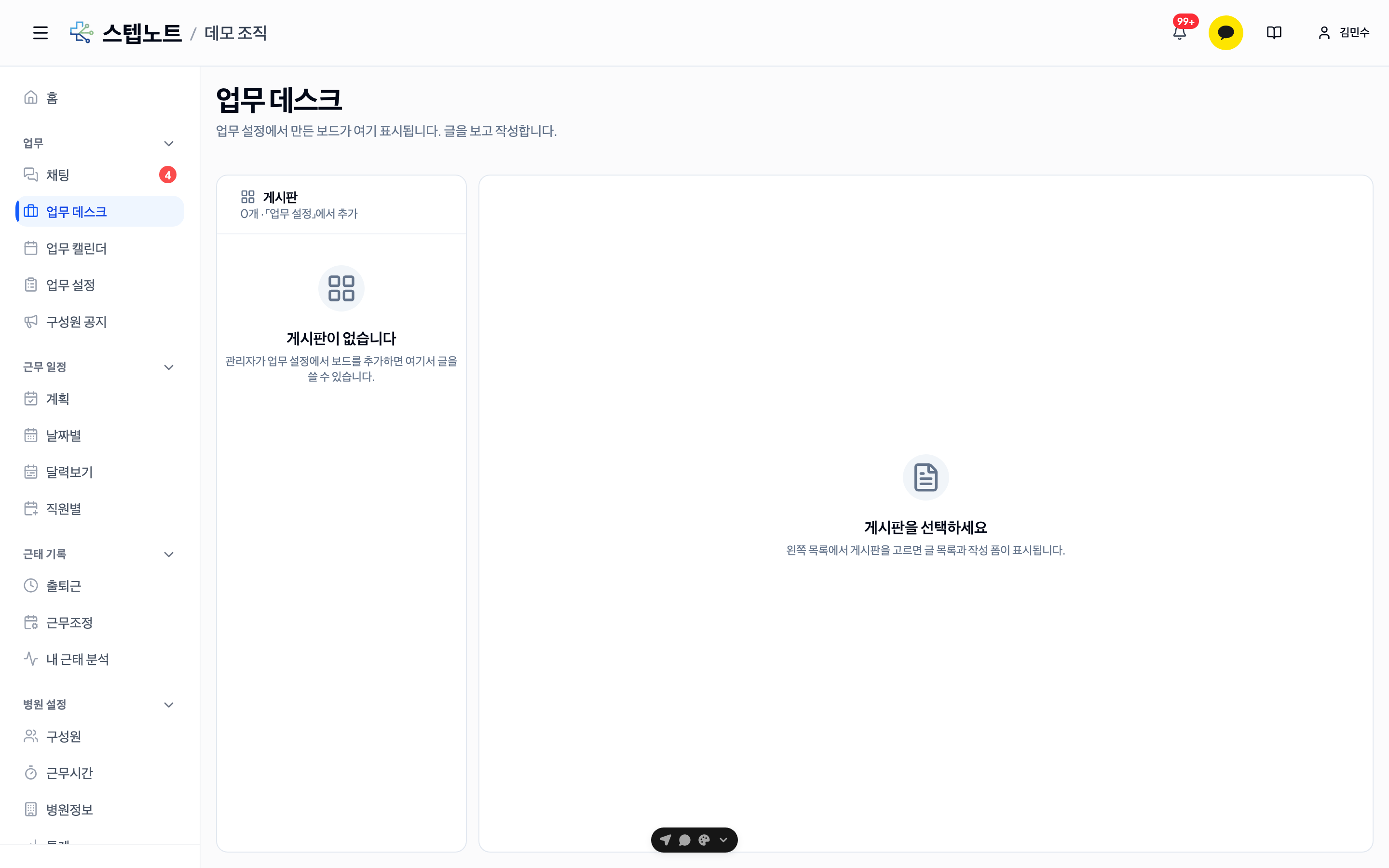
Writing a New Post
Click the "Write Post" button to open the compose form.
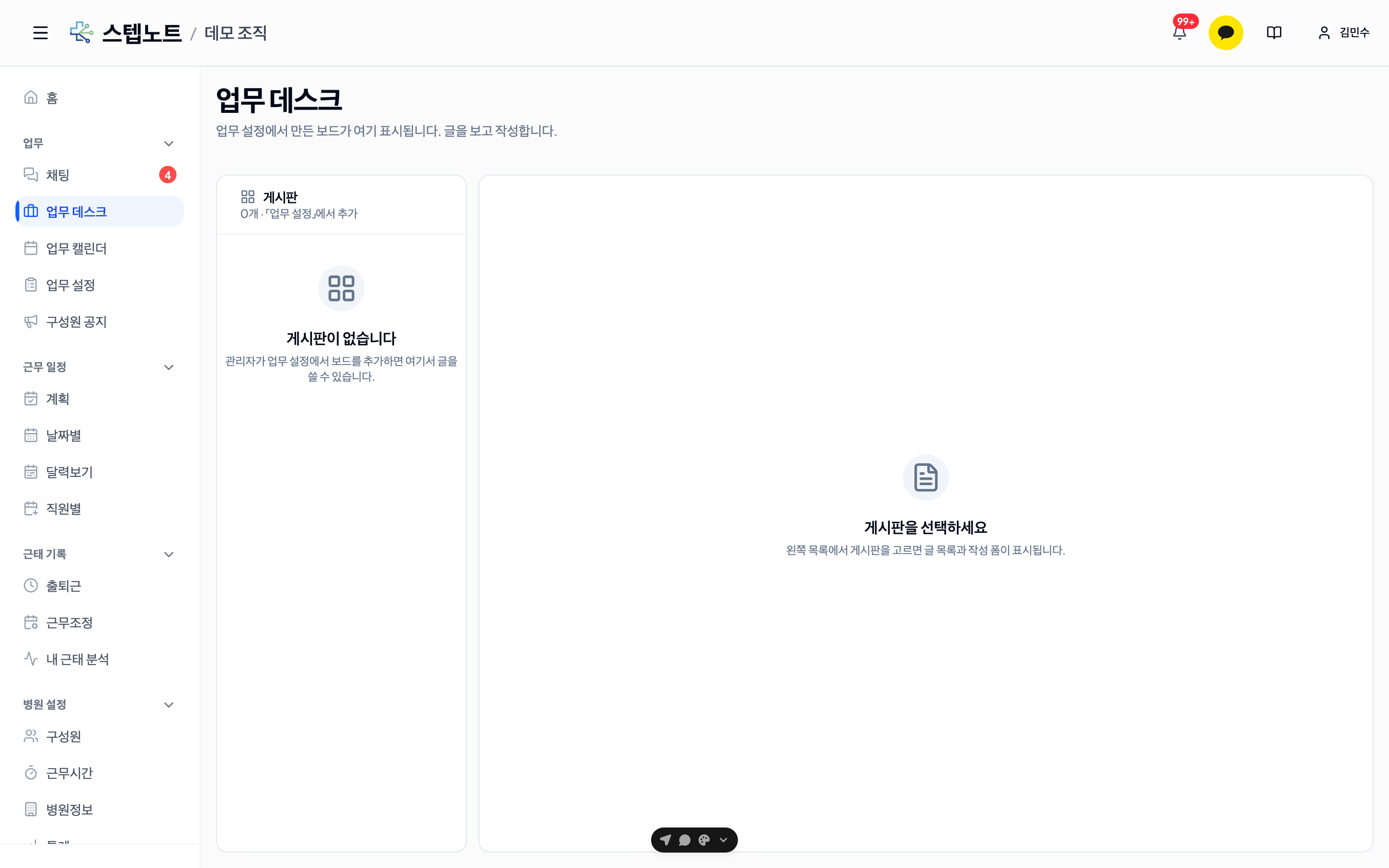
| Item | Description |
|---|---|
| Title | Post title |
| Board | Select the board to post to |
| Body | Rich text editor — supports formatting and media embeds |
| Due date | Set a deadline for the task (optional) |
| Assignee | Assign a specific team member (optional) |
9.2 Body Editor Features
Formatting Tools
Apply text formatting from the toolbar at the top of the editor.
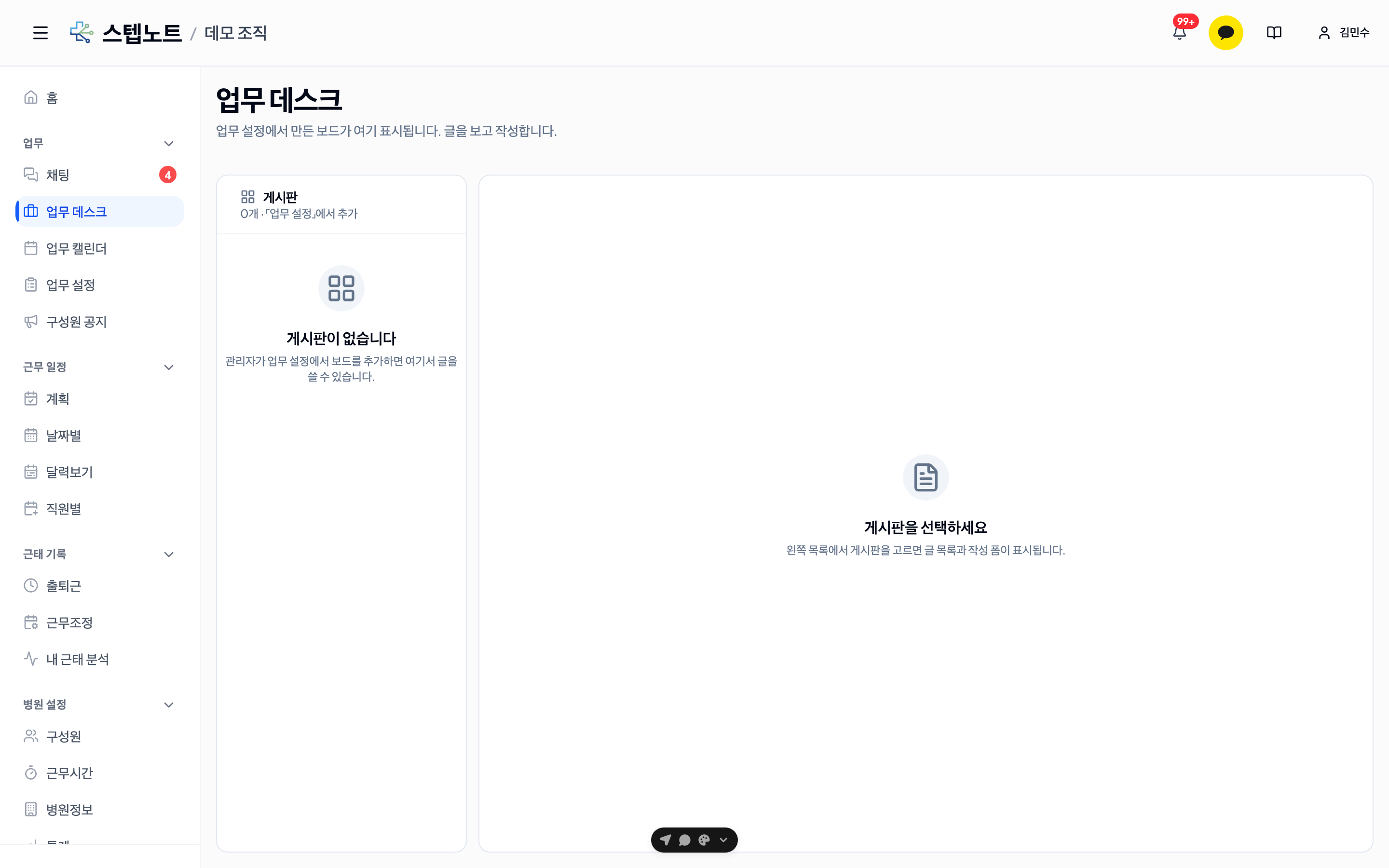
| Tool | Description |
|---|---|
| Text color | Apply any color to text |
| Highlighter | Emphasize text with a background color |
| Headings (H1–H3) | Convert a paragraph into a heading |
| Divider | Insert a horizontal line between content |
| Inline code | Display code snippets inline |
Inline PDF Preview
Upload a PDF file with the document button (📄) in the toolbar and a thumbnail of the first page is displayed in the body.
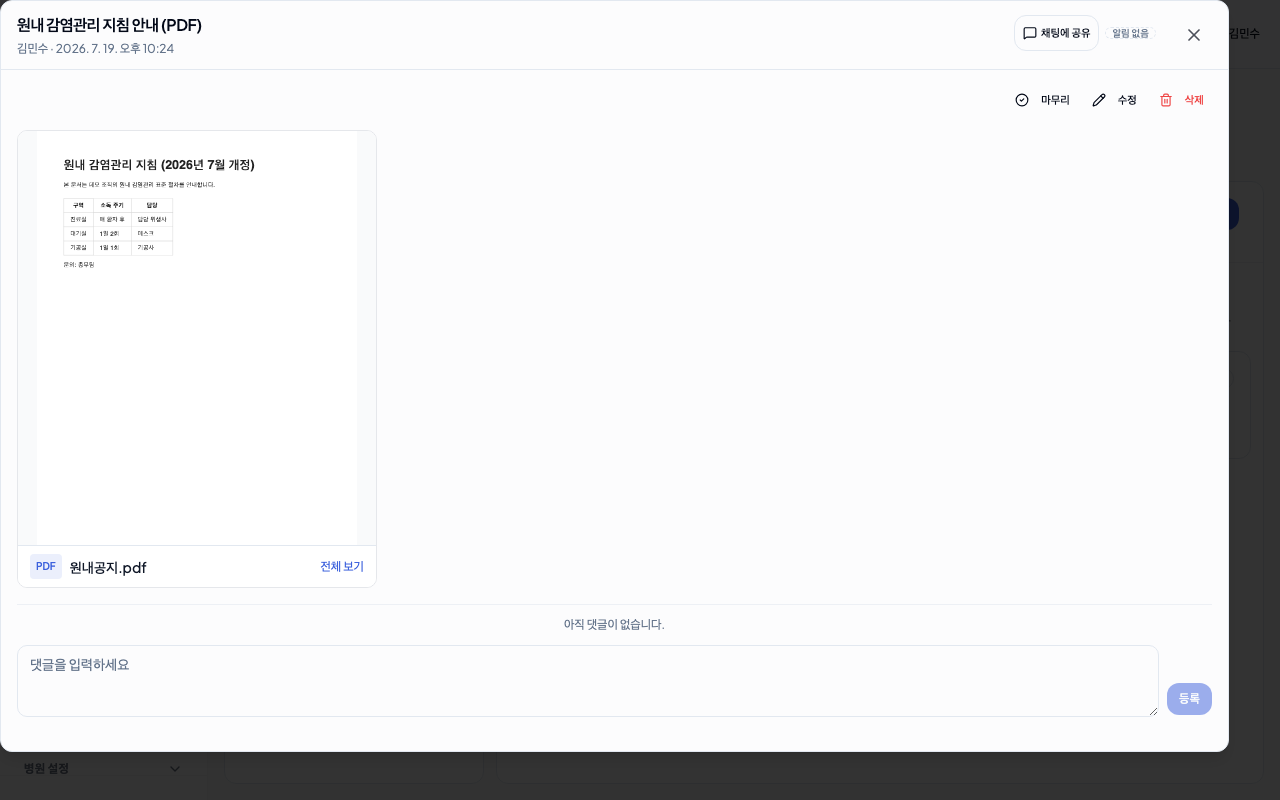
- Click the thumbnail to open the full-page viewer in a modal.
- Rendered directly in the browser with no server-side conversion.
Video Embeds
Simply paste a YouTube or Vimeo URL into the body (Ctrl/Cmd+V) and it automatically converts into a video player. There is no need to go through the link button in the toolbar.
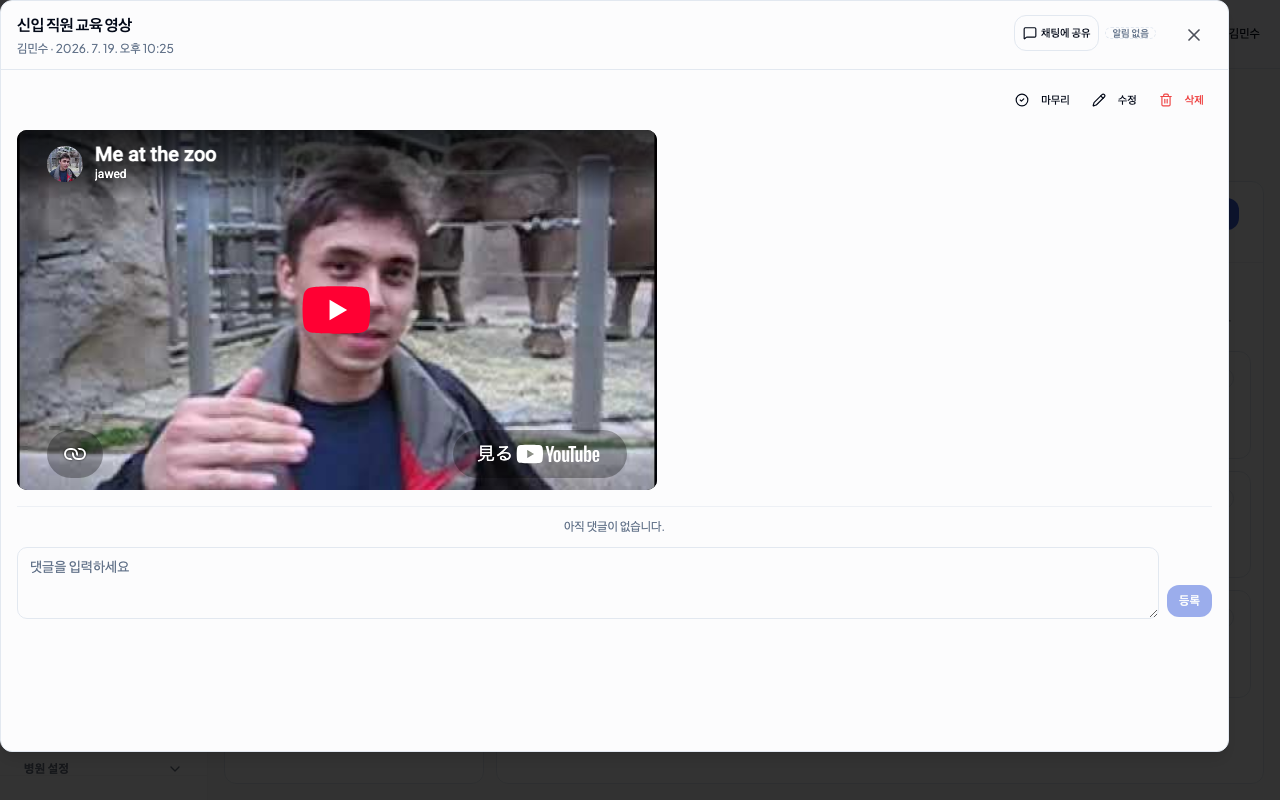
Only the provider + videoId is stored, not the external URL, so it is secure.
Google Docs · Sheets · Slides Embeds
Paste a docs.google.com link (Docs/Sheets/Slides) into the body and it is inserted as a card with a read-only preview (expand/collapse) + an "Open" button.
- The preview is always read-only — Google blocks its edit screens from loading in iframes. To edit directly, use the card's "Open" button to open the original in a new tab.
- For private documents, a Google sign-in screen may appear in place of the preview — you can still reach the original via "Open".
External Link OG Preview Cards
Enter a regular URL in the toolbar's link button (🔗) and apply it, and the site's thumbnail + title + description are displayed as a card. (Pasting a URL directly into the body inserts a plain hyperlink rather than a card — automatic conversion only applies to YouTube and Google Docs links.)
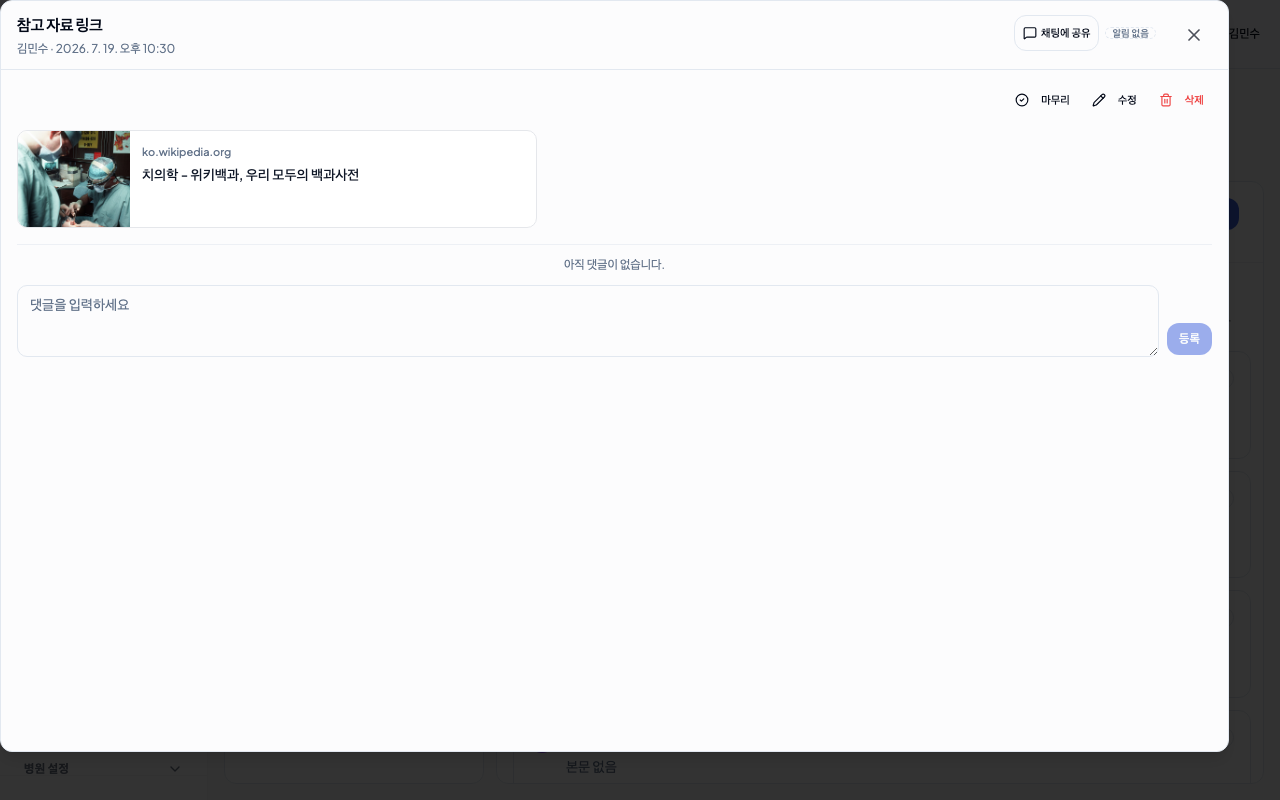
Inline Excel Preview
Upload an .xlsx / .xls file and you can view the sheet tabs and table contents directly inside the body.
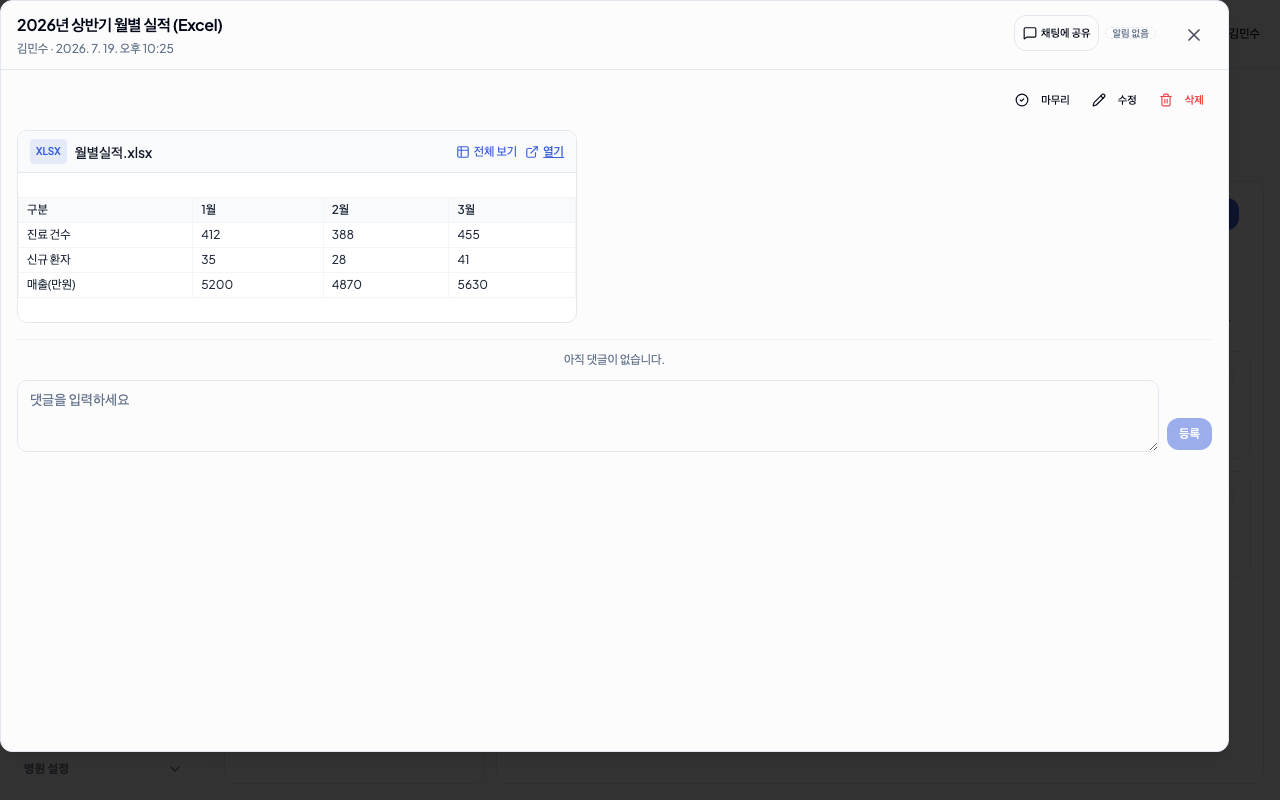
- Sheet tabs: Switch between multiple sheets with tabs
- Full view: Click the button to expand into a wide modal
- Parsed directly on the client with no server (SheetJS)
Mobile (iOS/Android): Wide tables can be viewed by scrolling horizontally inside the card. The "Full view" button is always located at the top right of the card.
9.3 Chat — Group Messenger
Click Work → Chat in the sidebar.
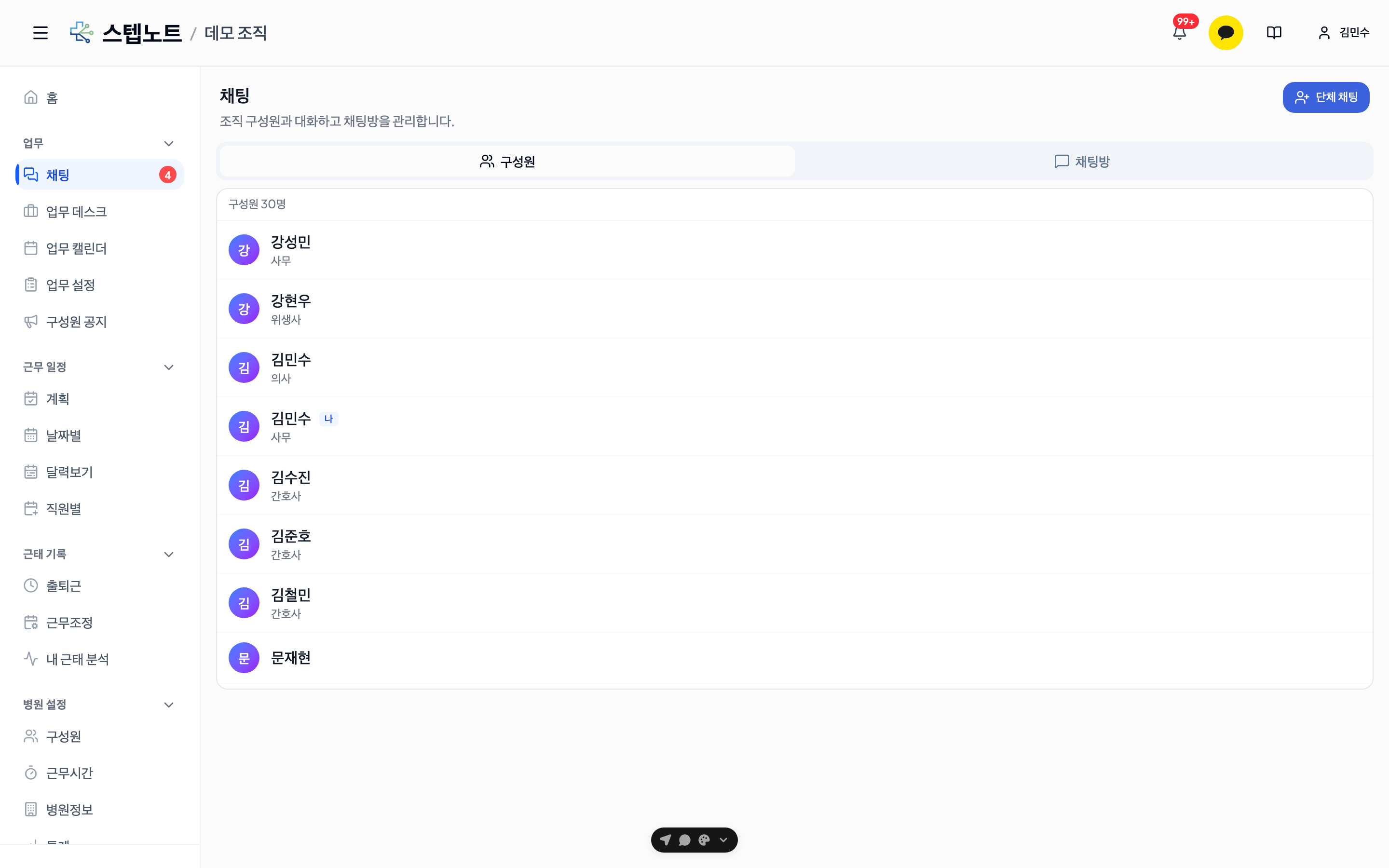
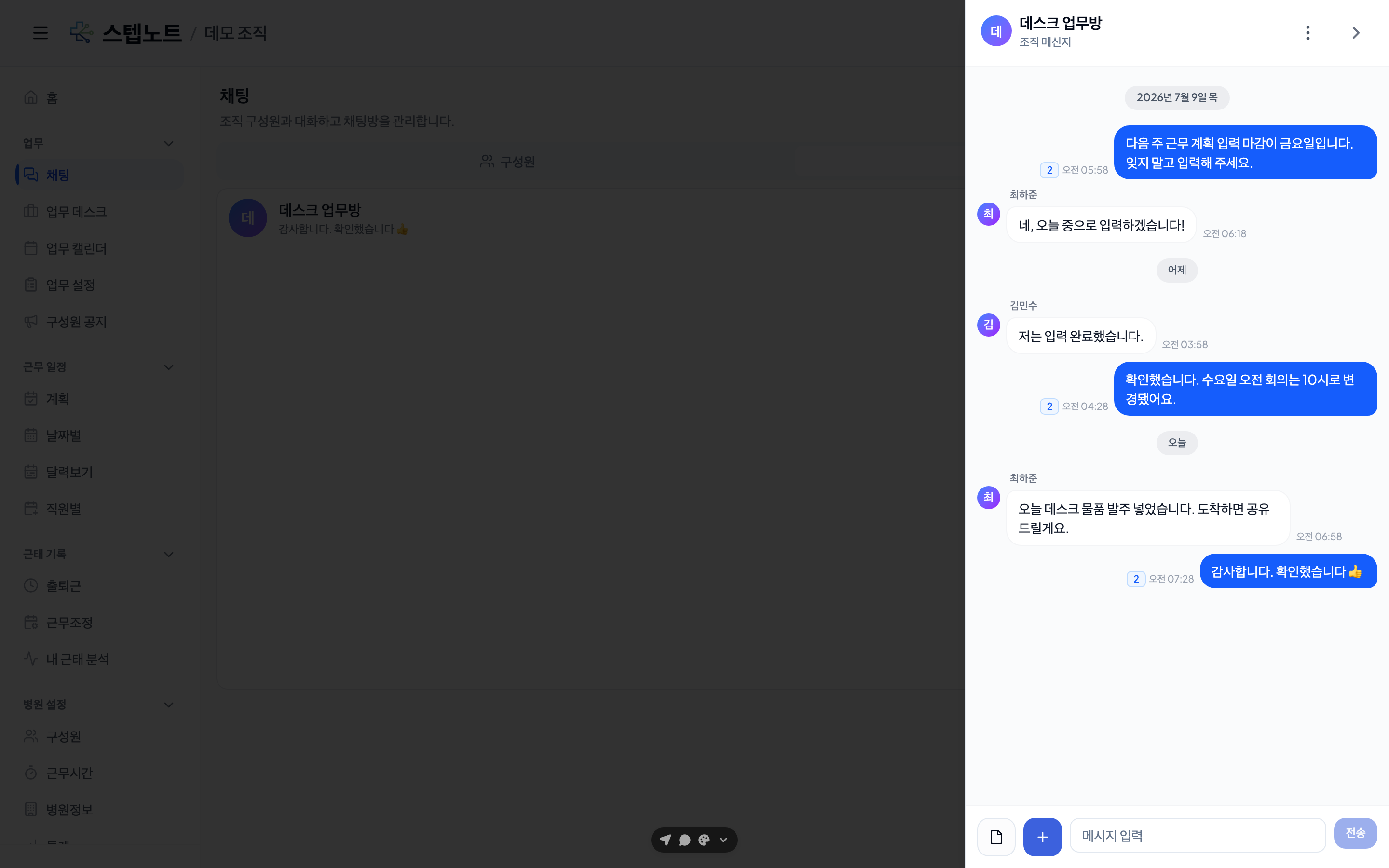
Group chat rooms show the current number of participants in small text next to the room title, so you can tell how many people are in a room without opening it.
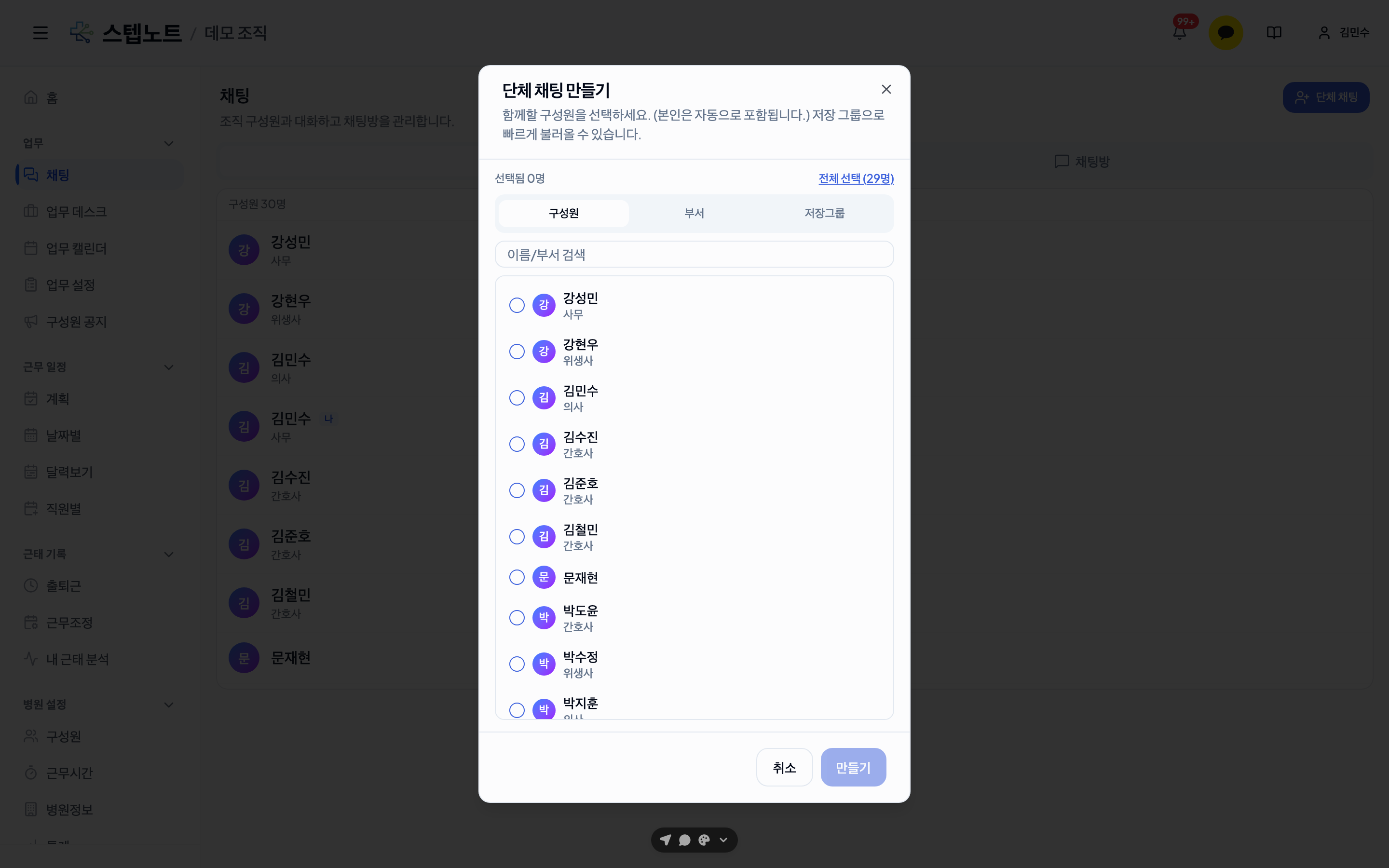
Creating a Chat Room
Create a new chat room with the "+" button and invite team members.
- Both 1:1 and group chats are supported.
- You can set the chat room name and icon.
- The "Select All (N members)" button at the top of the member selection screen selects all active members of the organization at once (the same member selection UI is also used for assigning post assignees and choosing announcement recipients).
Sending Photos & Videos · Zooming In · Saving
Press the paper-clip (📎) icon ("Attach file") to the left of the composer to pick photos, videos, or files. In the app this opens the gallery (photos + videos); on the web it opens a file picker. (The "+" menu is for polls, draws, calendar sharing, and document sharing.)
- Videos must be 5 minutes or shorter. They are converted for sending first, and the bubble shows "Preparing video N%". While converting, "leaving the app will interrupt it" — stay in the chat until it finishes. Sent videos show a preview frame with a play button.
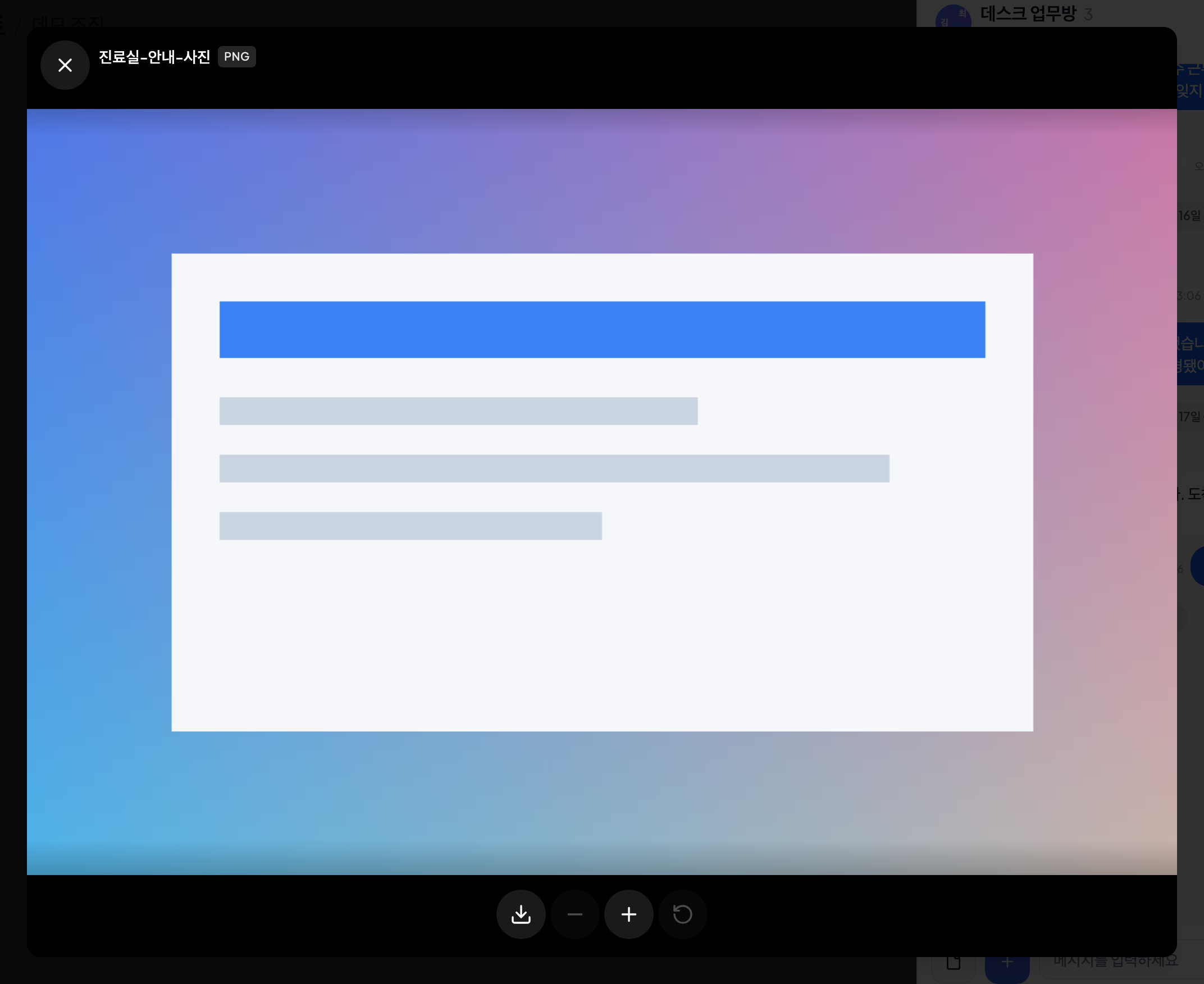
- Tap a received photo to open the full-screen viewer.
| Action | How |
|---|---|
| Zoom in / out | Pinch with two fingers on mobile, or use the mouse wheel on desktop. Double-tap (double-click) toggles between zoomed and original size. The −/+ and reset buttons at the bottom also work (up to 6×) |
| Pan | Drag with a finger (or the mouse) while zoomed in |
| Next / previous photo | The 〈 〉 arrows on either side — shown only when there are several photos and you are not zoomed in. The top bar shows the position, e.g. "2 / 5" |
| Save (download) | The download icon in the bottom bar. In the app it opens in the system browser so you can save to the device |
| Close | X at the top left |
💡 Any message with a photo, video, or file attached can be long-pressed (right-clicked on desktop) and saved to the document library — see "Message Action Menu" below.
Message Date Dividers
The message list automatically shows Today / Yesterday / YYYY-MM-DD dividers whenever the date changes, so you always know which day a conversation belongs to while scrolling.
Member Management (Chat Room Owner)
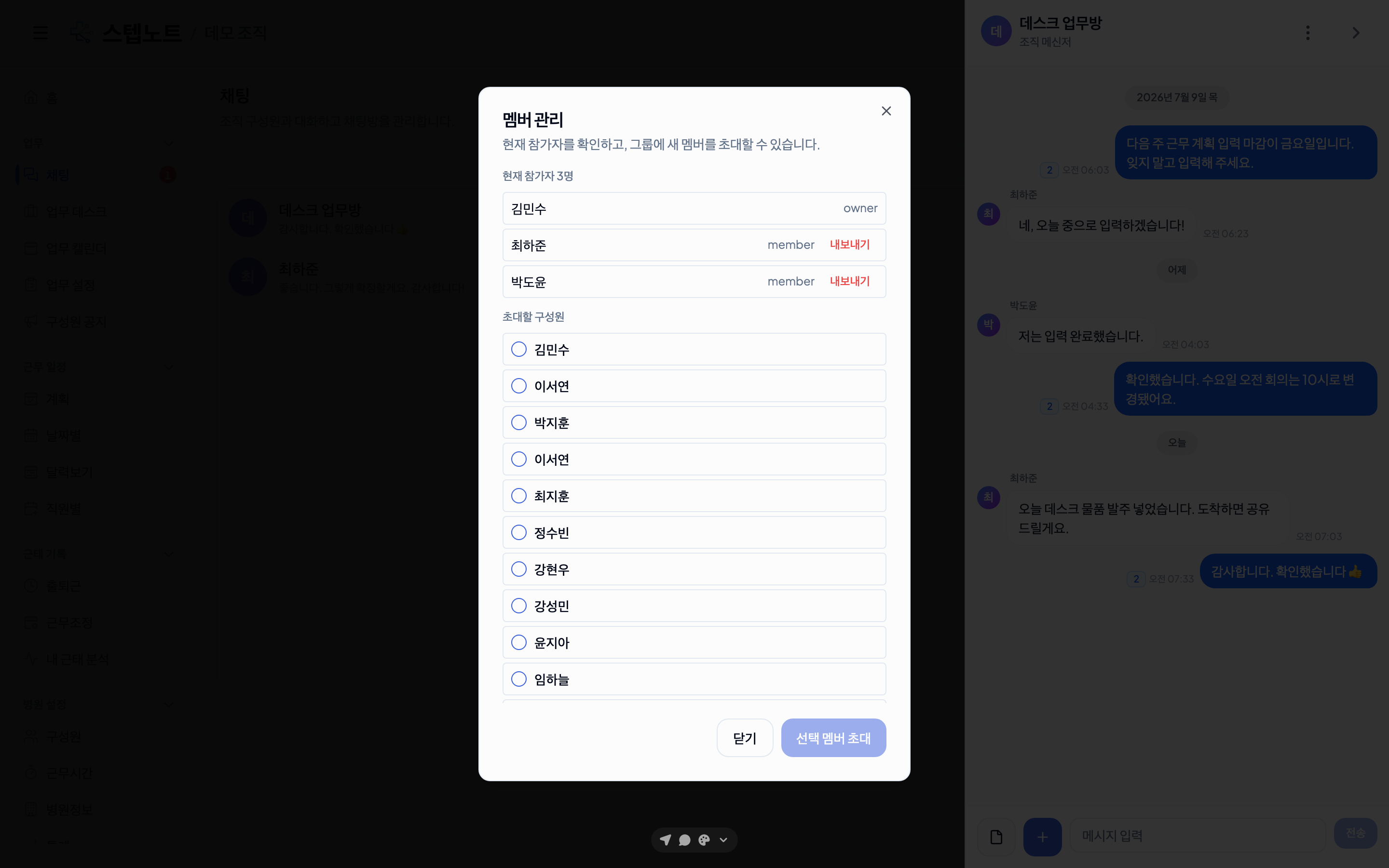
The Owner who created the chat room can click the member icon in the header to manage the participant list.
Removing Members
The owner can quietly remove a member from the chat room with the "Remove" button in that regular member's row.
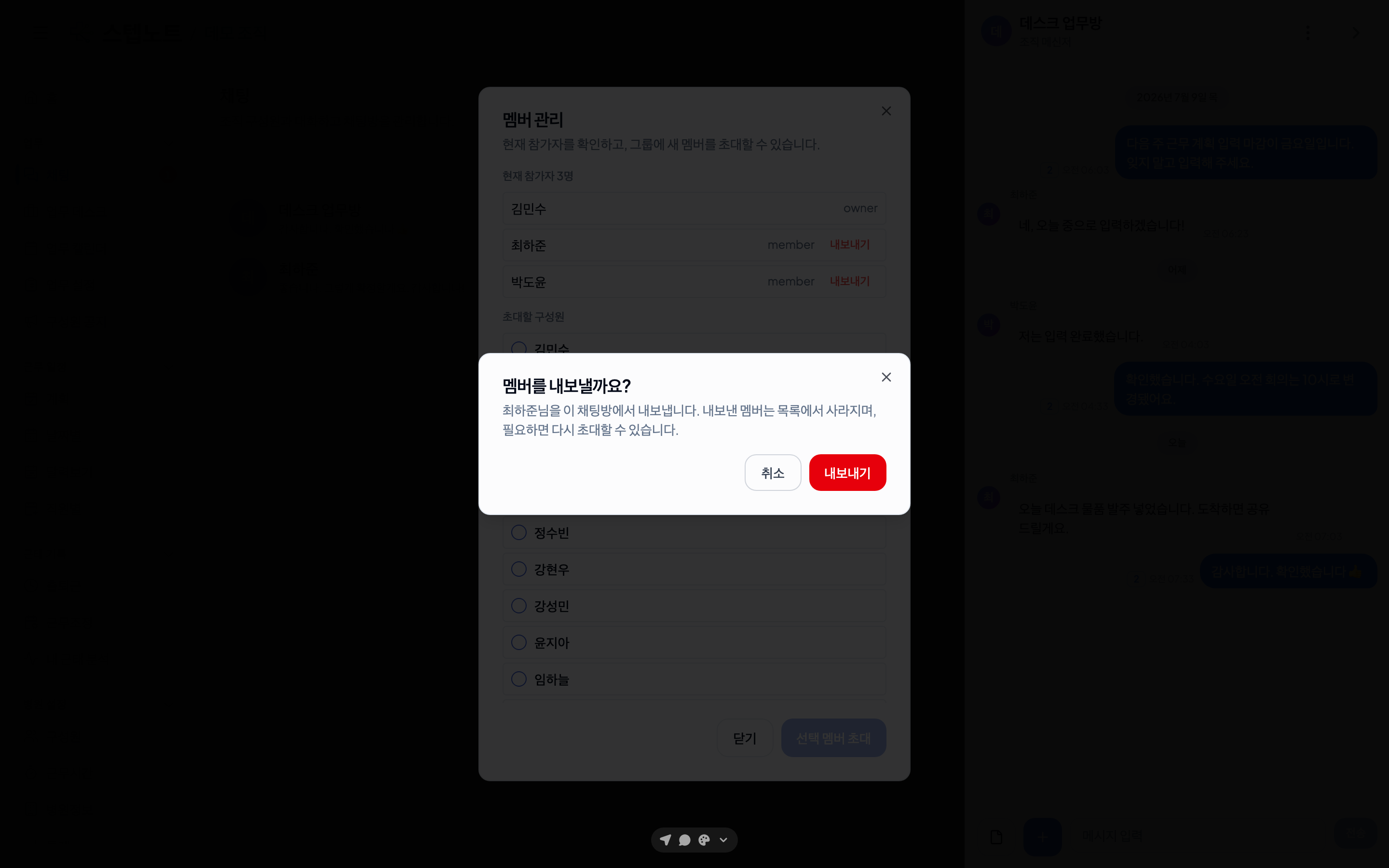
| Rule | Details |
|---|---|
| Who can be removed | Regular members (Member) only |
| Who cannot be removed | The owner (Owner) and yourself |
| How it works | Quietly removed after a confirmation dialog (no system message) |
| Header update | The member count in the chat header updates immediately after removal |
Members who are not the owner do not see the "Remove" button.
Reacting to Messages
Just like KakaoTalk, you can react to individual messages with a short emoji.
- Desktop: Click the smiley icon that appears when you hover over a message bubble.
- Mobile: Long-press the bubble to open the menu, and pick from the row at the top.
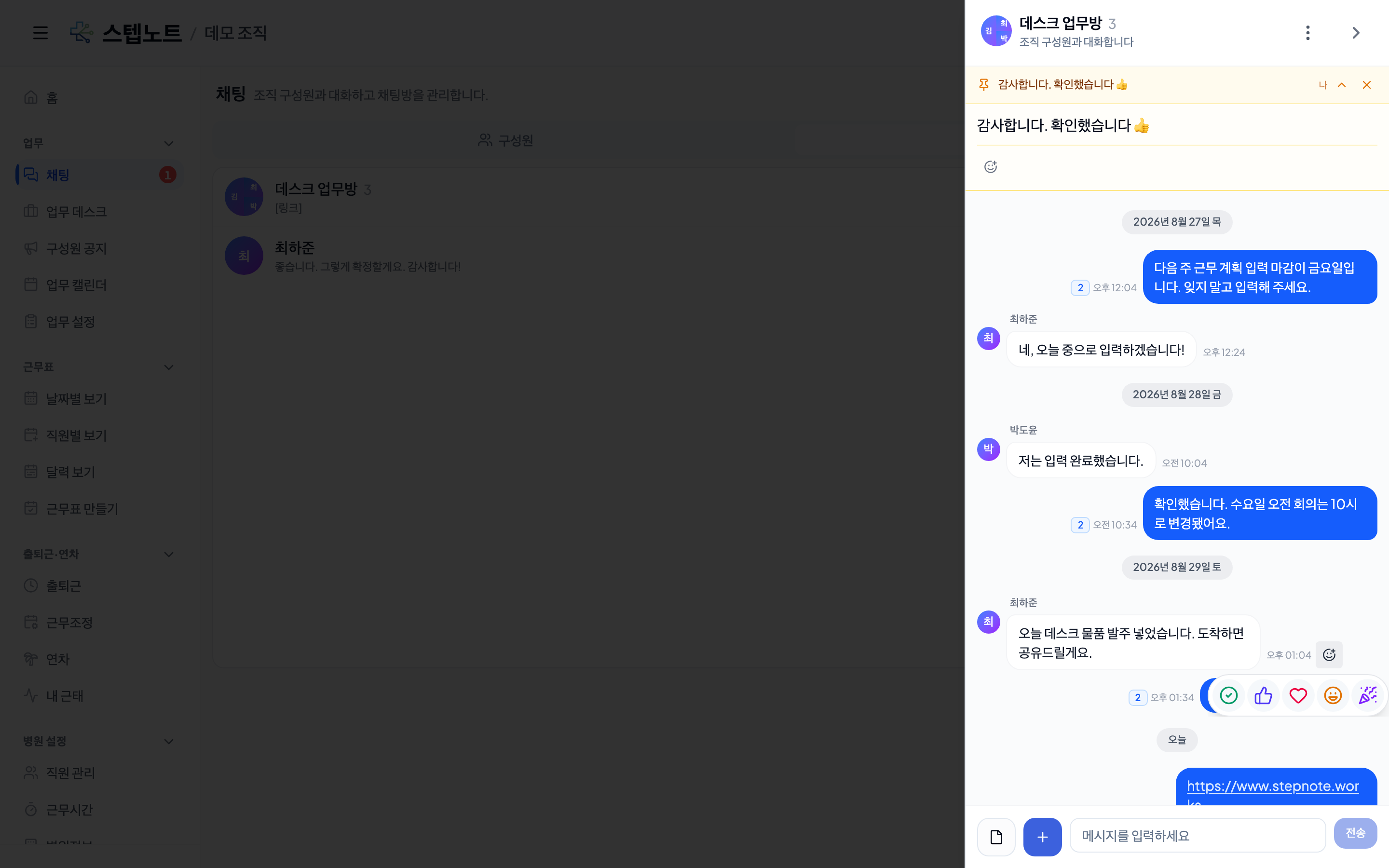
- There are 5 reactions: ✅ check · 👍 thumbs up · ❤️ heart · 😄 smile · 🎉 party.
- Each message can hold only one reaction per person. Tapping the same reaction again removes it; tapping a different one switches to that one.
- Tap the reaction count chip below a bubble to see who reacted — and, among the room's members, who hasn't reacted yet.
💡 Handy for "has everyone seen this?" — the reaction list lets you filter to just the people who haven't reacted, so you can follow up with them individually.
Message Action Menu — Copy, Pin, Save to Library, Delete
Right-click on desktop or long-press on mobile to open a message's action menu. The reaction row sits at the top, with available actions listed below it.
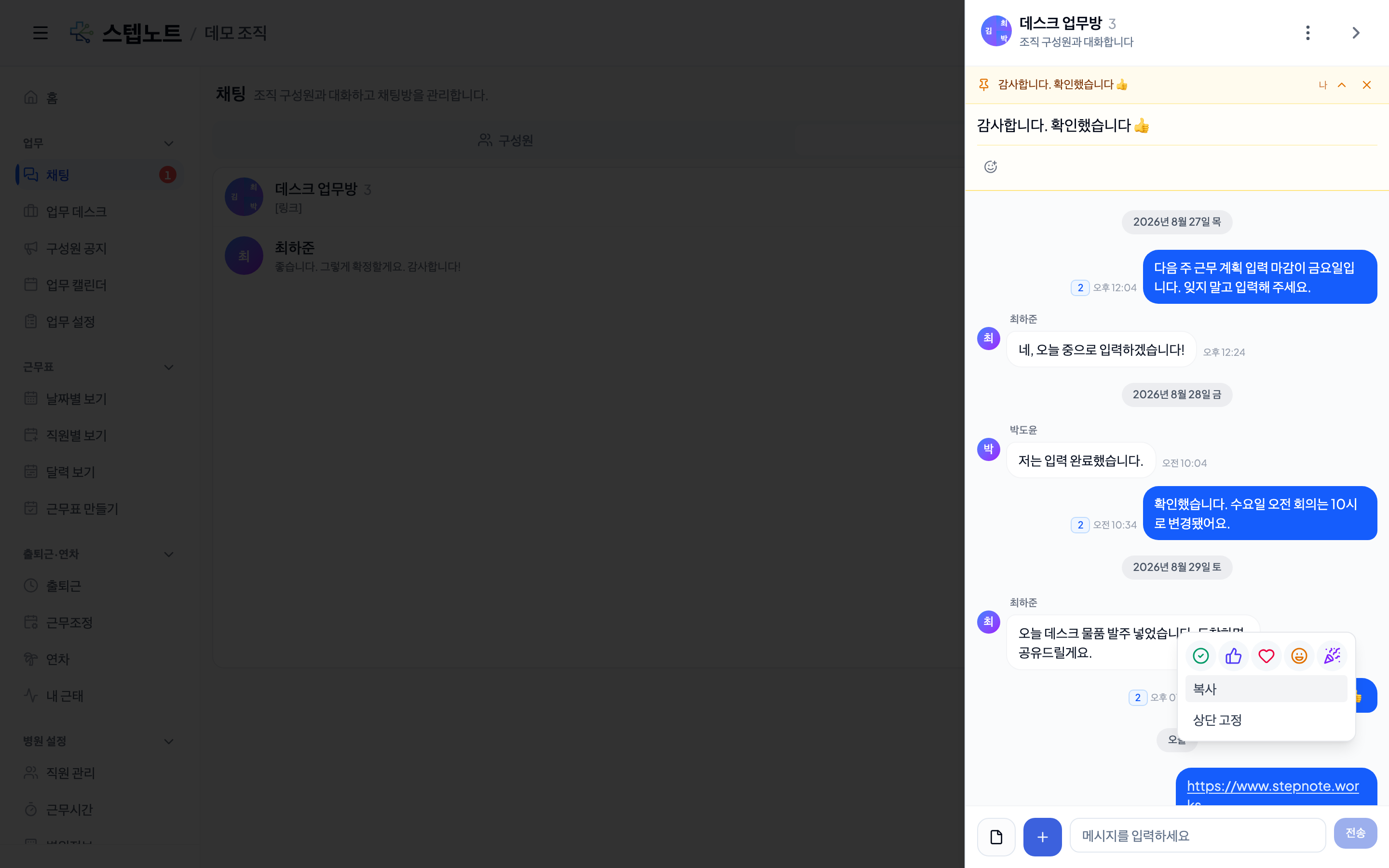
| Item | Condition |
|---|---|
| Copy | Shown only for plain text messages (not shown for polls, draws, share cards, etc.) |
| Pin / Unpin | Any active member of the room can pin or unpin any non-deleted message (see "Pinned Announcement" below) |
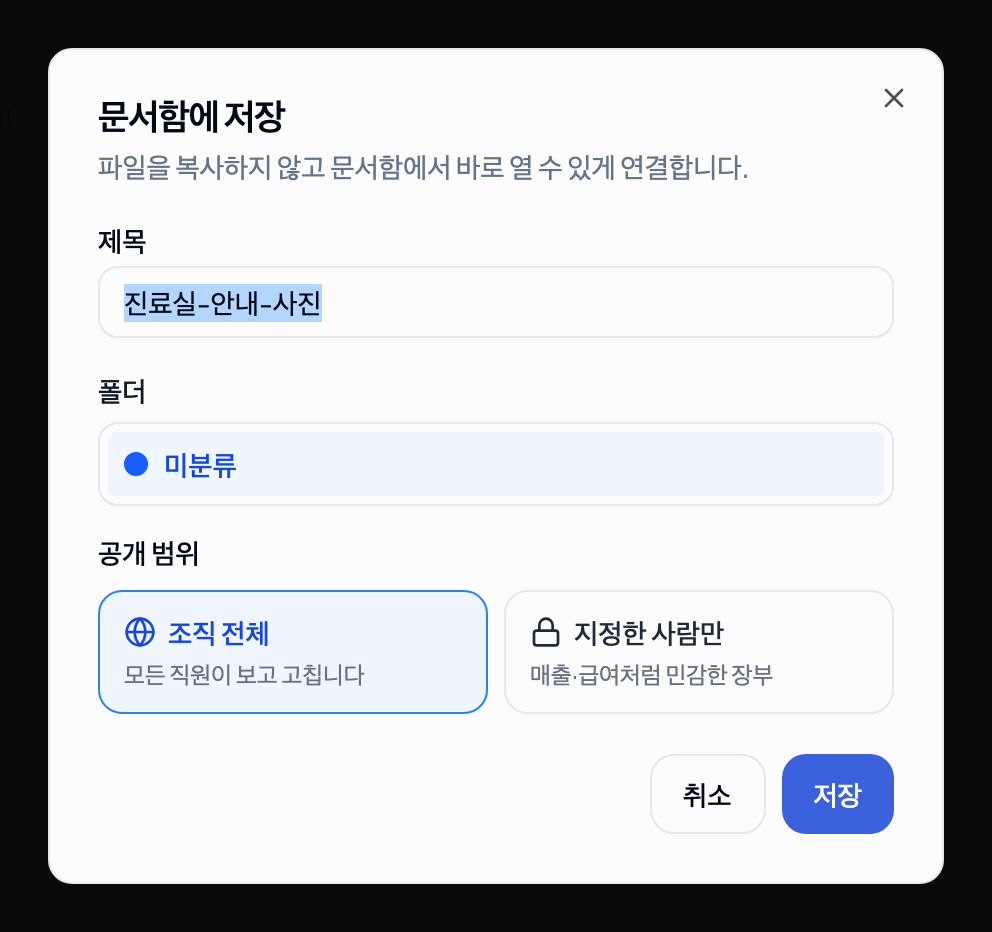
| Save to document library | Shown only for messages with a photo, video, or file attached. Choose a title, folder, and visibility to put it in the 10. Document library. It points at the same file instead of copying it, so storage usage does not grow |
| Delete | Only your own message, and only within 10 minutes of sending |
Pinned Announcement
Each chat room has one pin slot. Pinning a message attaches it as a banner at the top of the room.
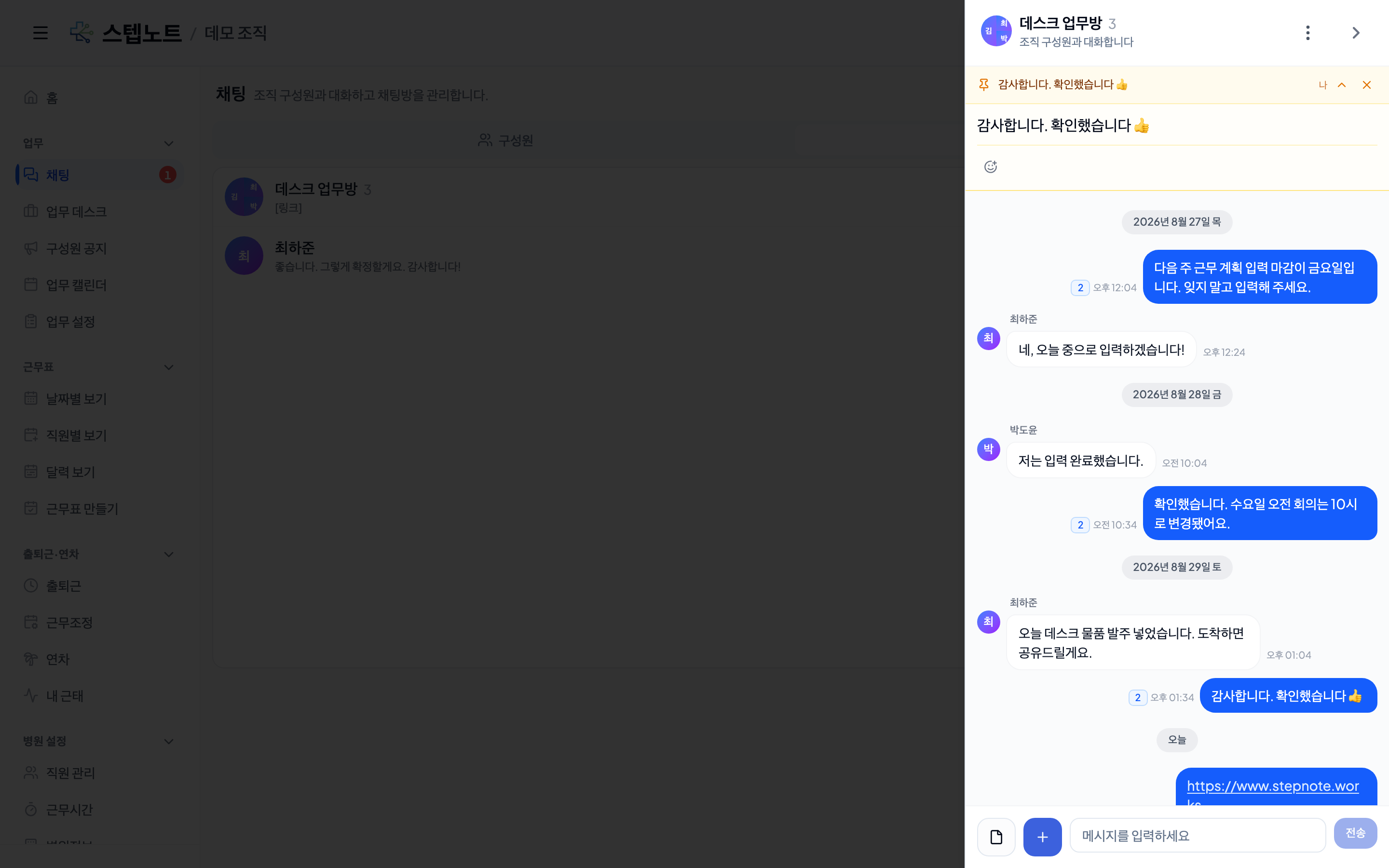
- The banner is collapsed to a single line by default; click it to expand and see the full content. If a poll is pinned, you can vote directly while it's expanded.
- The banner also has a reaction row, so you can react right there without scrolling up to the original message. Even while collapsed, it shows how many people have reacted.
- If another message is already pinned and you pin a new one, a "Replace the pinned announcement?" confirmation appears — it shows the existing announcement's content, and confirming replaces it. The original message stays in the conversation as-is, so you can re-pin it later if needed.
- Unpinning (the ✕ button on the banner) can also be done by any active member of the room.
Link Previews
Paste a regular website URL into a message and its thumbnail, title, and description are automatically shown as a card. YouTube links get the same treatment, with a title and thumbnail.
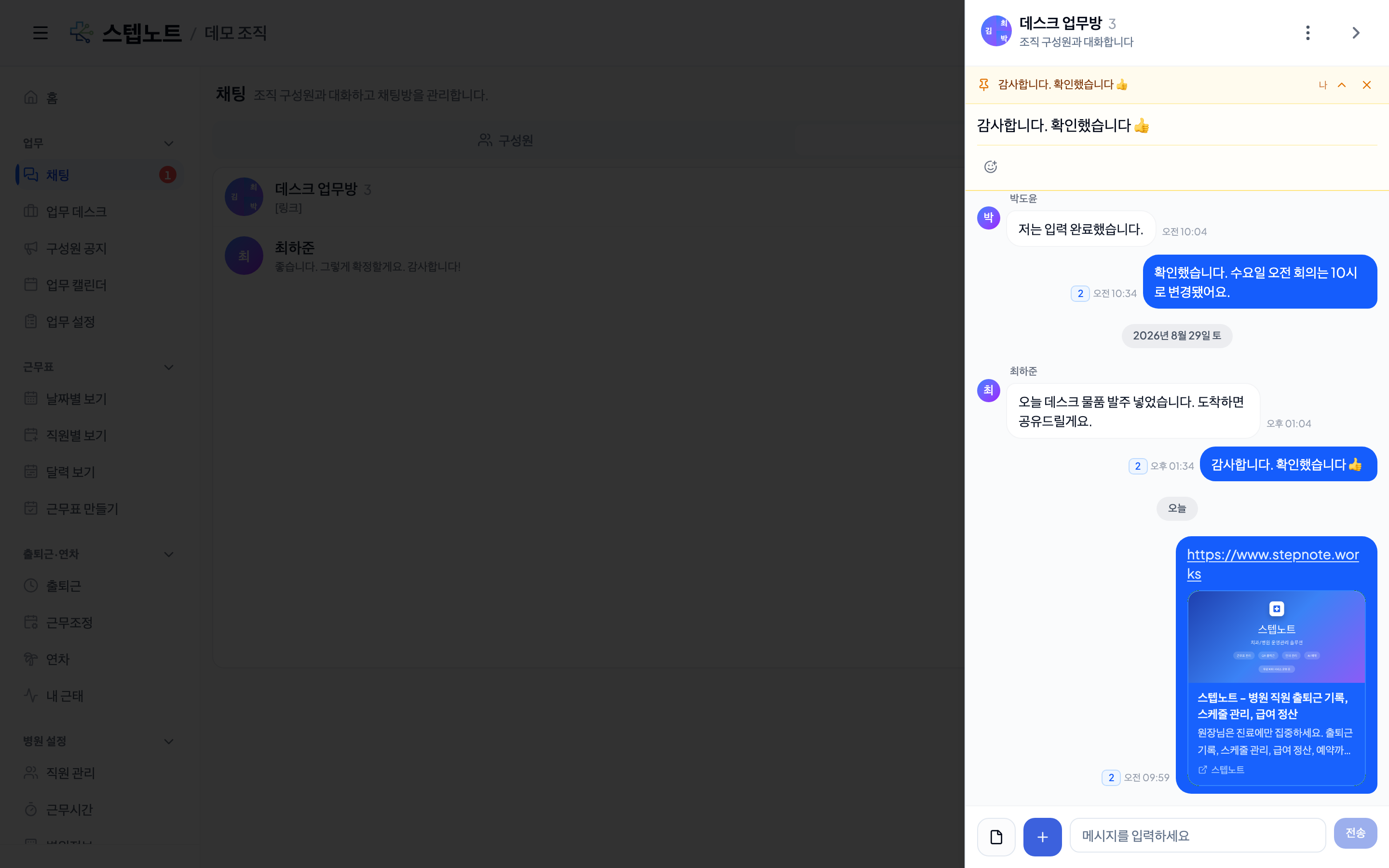
This works the same way as the link cards in work desk posts (see 9.2), except in chat there's no separate button — just paste the URL and the card appears automatically.
Creating a Poll
Click the "+" button (to the left of the message box) → "Create poll".
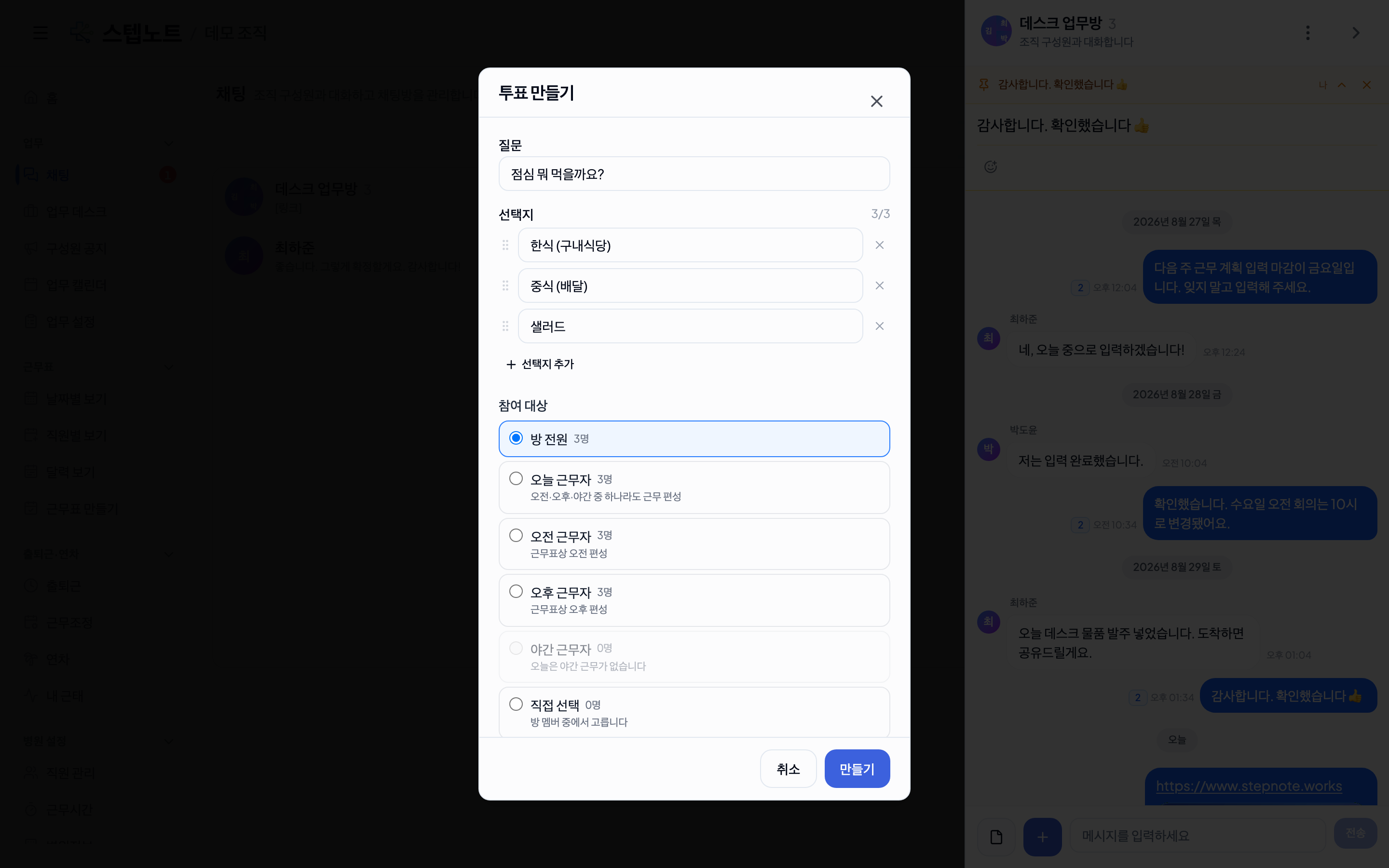
| Item | Description |
|---|---|
| Question / options | One question + at least 2 options (up to 10) |
| Participants | The whole room, or a specific subset — the chosen list is fixed at creation time |
| Multiple choice | If on, a person can pick more than one option |
| Anonymous | If on, hides who picked what (in this case, the "who hasn't voted" count isn't available either) |
The poll card shows live vote counts right in the chat. Use "View results" at the bottom of the card for a detailed breakdown; the creator or the room owner can also "Close" the poll (stops accepting votes) or "Delete poll".
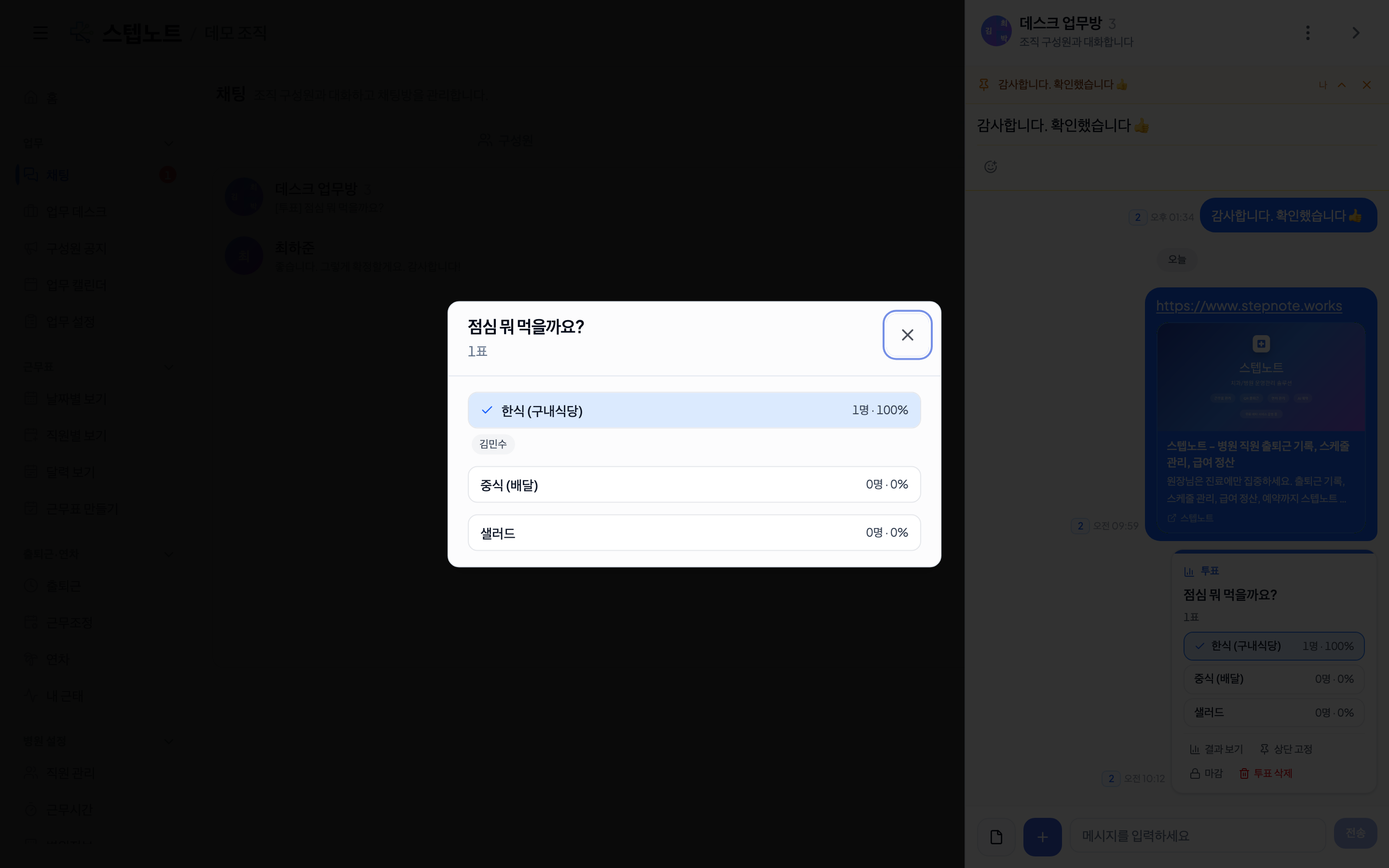
Non-anonymous polls also show "X of Y participated," so you can immediately see who hasn't voted yet.
💡 When a poll is closed, a result notification is sent as a push notification to its participants (not sent to anyone currently viewing that chat room).
Draws (Random Picker)
Click "+" → "Create draw". Set what you're deciding, how many people to pick, and the candidate pool (the whole room or a subset), and the card is created.
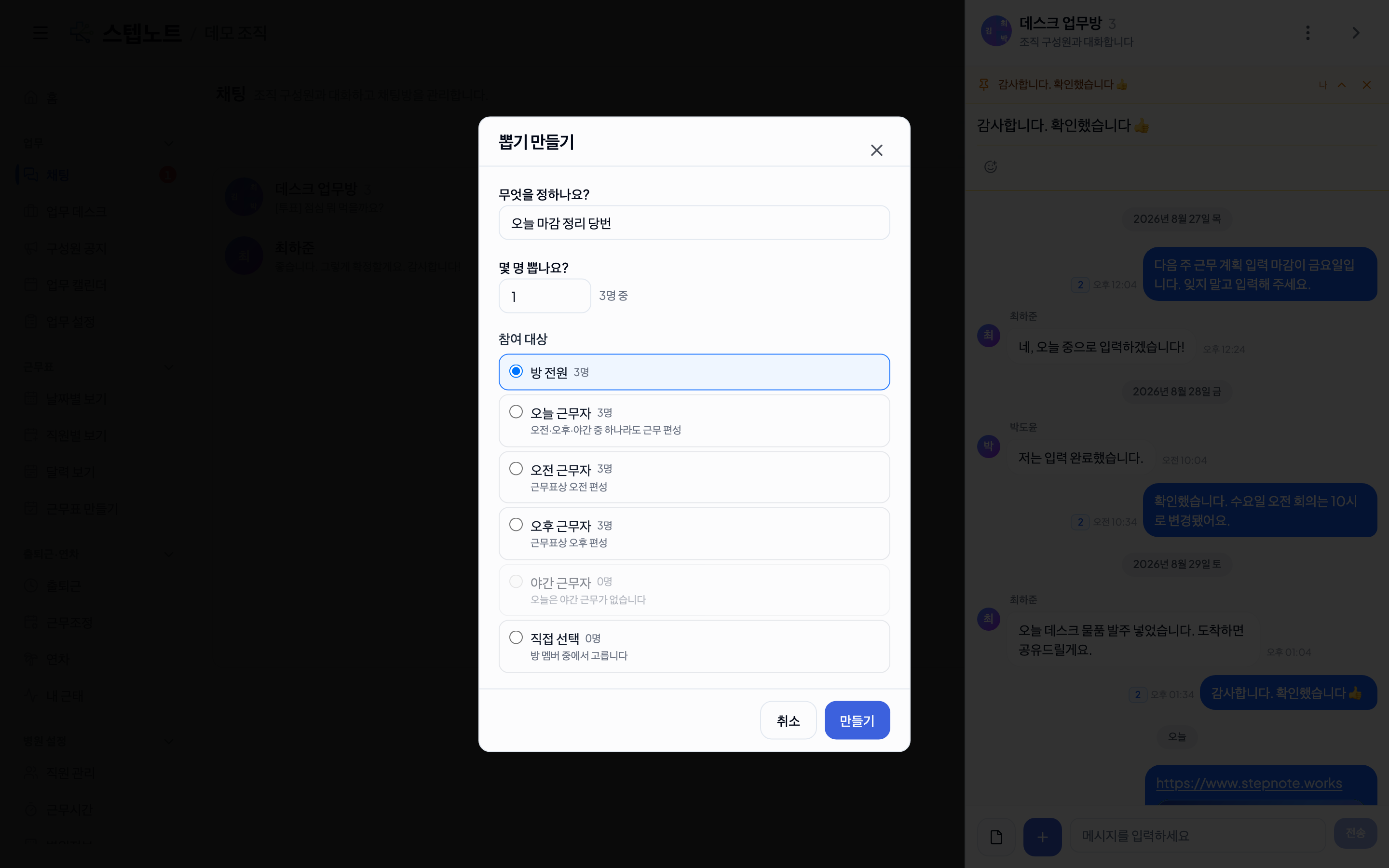
- Press the card's "Draw" button to run a short spinning animation before the result is finalized. Only the creator or the room owner can run the draw.
- Results are decided by the server and can't be redrawn — create a new draw if you want to run it again.
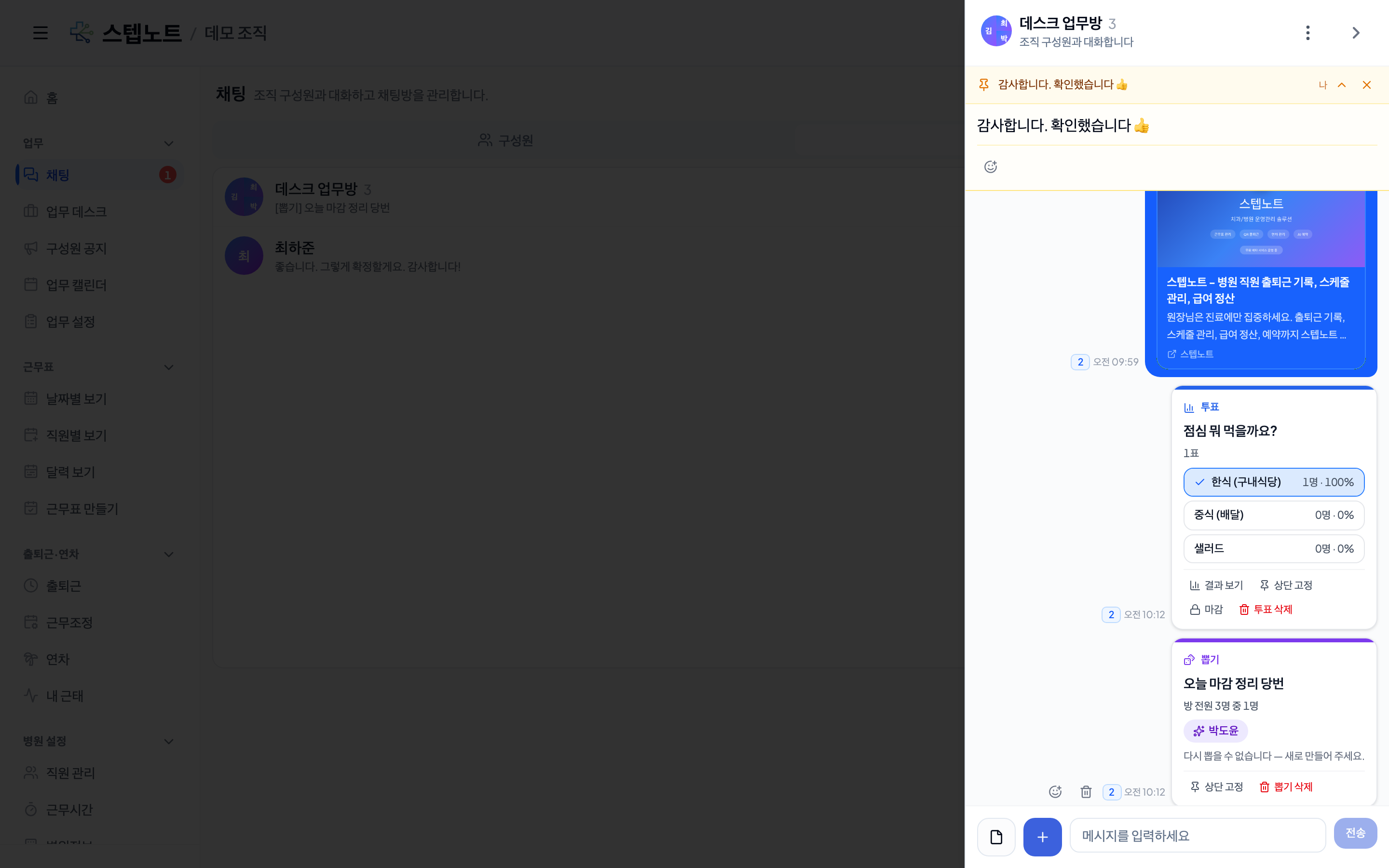
💡 A push notification is sent to everyone who was a candidate once the draw result is out.
Sharing & Creating Calendar Events
From the "+" menu, choose either "Create event" (add a new event to the work calendar right away) or "Share event" (share an existing calendar event into this chat room as a card).
- With "Share event", you can search by event title, and even past events can be shared (useful for looking back).
- The shared card shows the event's title, date/time, location, and calendar, and clicking it takes you to that event on the work calendar.
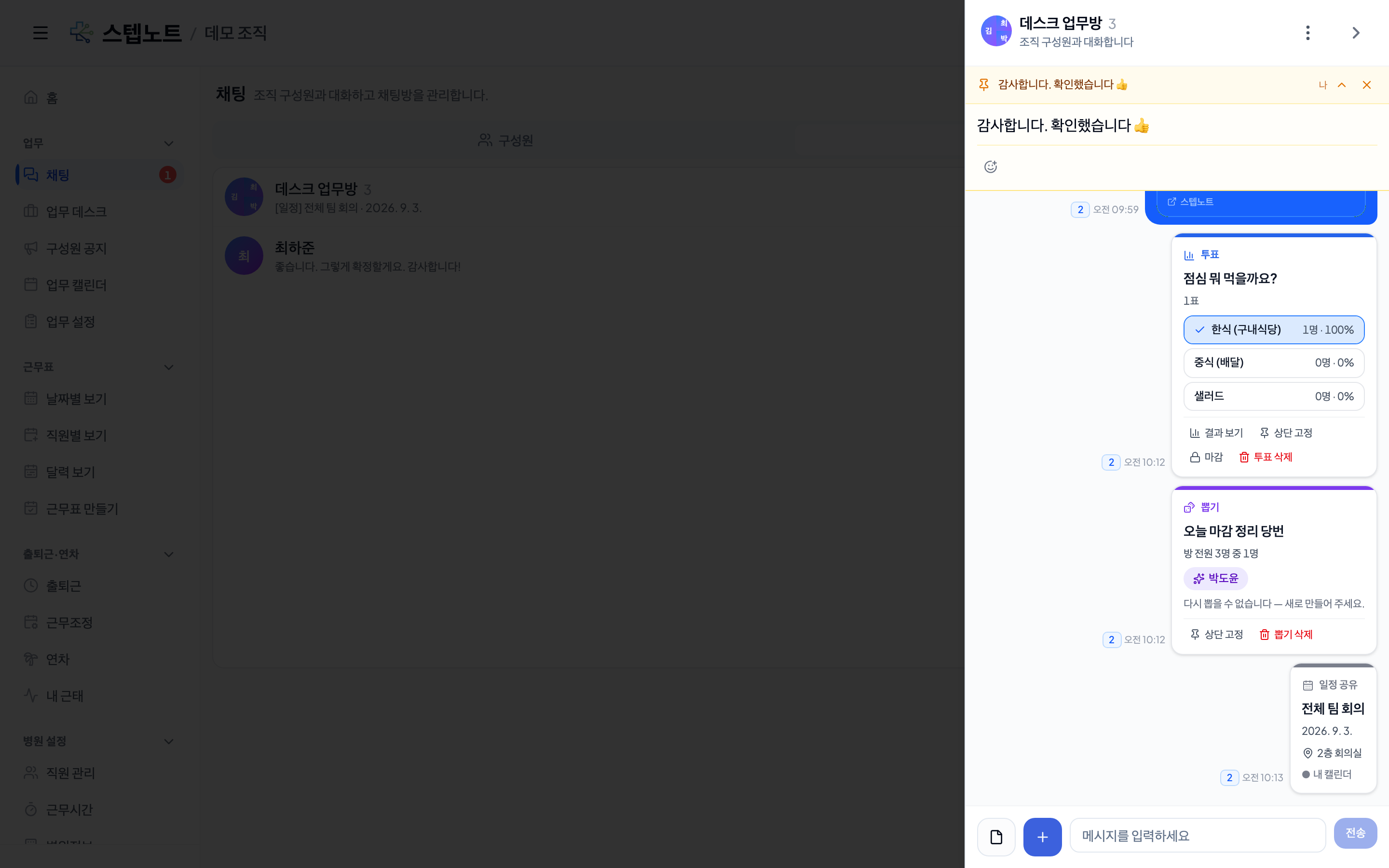
💡 Creating an event sends a push notification to the members listed as attendees.
Birthday Alerts
Turn on the "Birthday" layer on the work calendar (in the calendar list panel) to show members' birthdays on the calendar with a 🎂 icon. On the day itself, the person also gets a push notification.
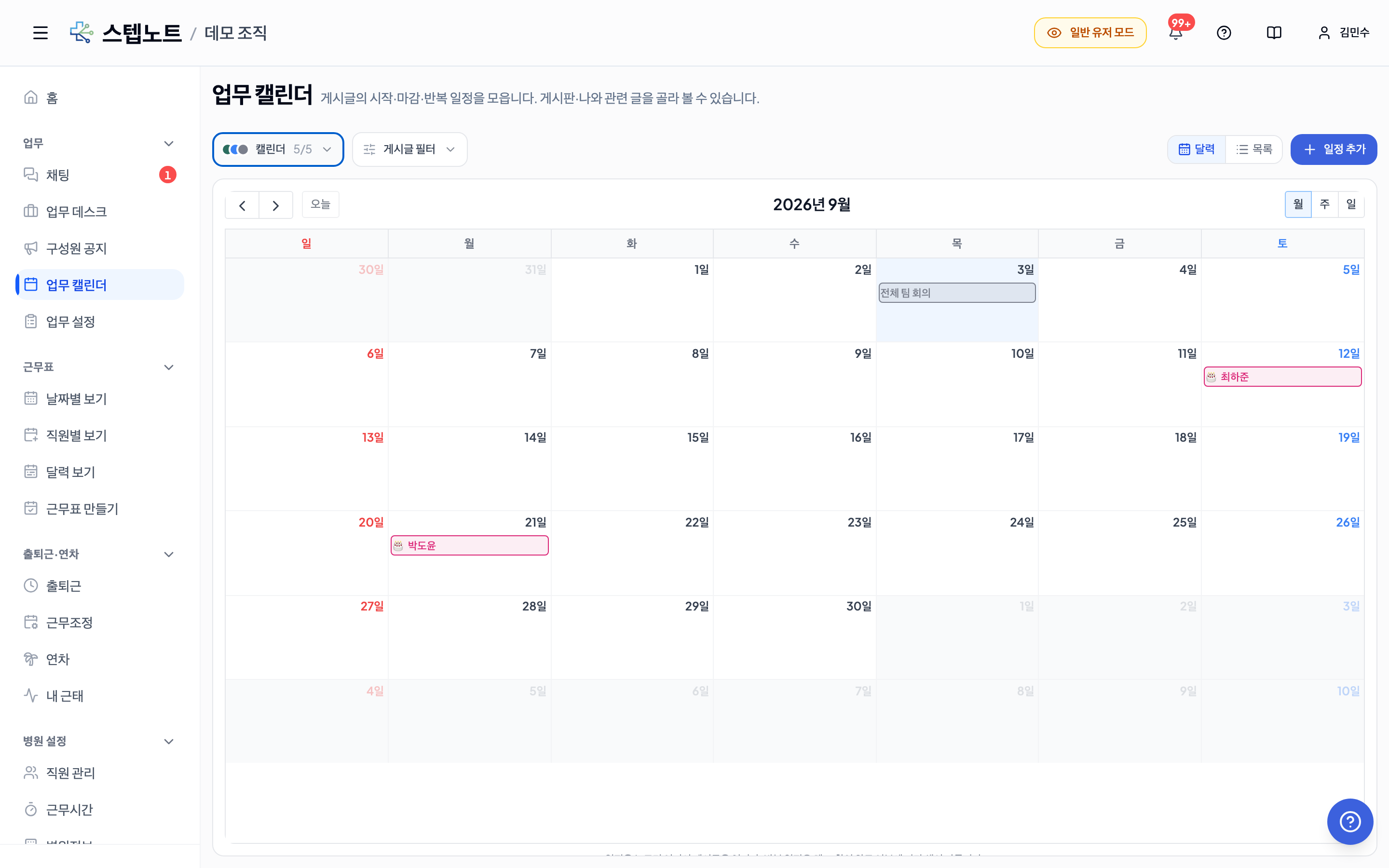
- Birthdays are managed separately per organization (Member Management → Edit staff info, or the member can enter it directly in their Profile) — even if someone belongs to multiple clinics, birthdays don't get mixed up between them.
- Only members who have entered their birth date are shown. If it isn't entered, it won't appear on the calendar or trigger a notification.
- Retired members' birthdays do not trigger notifications.
9.4 Work Settings — Board Management (Admin Only)
Create and configure boards in Work → Work Settings in the sidebar.
Changing Board Display Order
Drag the ⠿ handle on the left of each item in the board list to change the display order (the same operation as reordering departments). The new order is also reflected in the board selection list on the work desk.
Only admins (Admin) and owners (Owner) can change the order.
Note: Post Detail View Size
The detail modal that opens when you click a post is displayed wide, fitting the browser window size on desktop, giving attachments and embedded content more room. On mobile it opens full screen as before.
Frequently Asked Questions
The Work tab does not appear in my sidebar.
Starting September 2026, newly created clinics have the work collaboration feature enabled by default. If your clinic was created before that, it needs separate activation — please contact support@stepnote.works.
pptx/docx file previews don't work.
Currently, pptx/docx requires a separate conversion server, so these are provided as downloads instead of previews. Convert to PDF and upload to use the inline preview.