10. Document library
10. Document Library
Audience: Administrators (Admin/Owner) and staff (Member) — shown only in clinics where the work tools (collaboration features) are turned on. Clinics created from September 2026 have them on by default; older clinics can turn them on with the "Use work tools" switch on the Getting Started tab or in clinic settings.
Purpose
This is where you import the Excel, Word, and HWP files your clinic already uses, keep editing them in the browser, organize them in folders, share them as cards in chat, and print them. Keeping daily files such as the cash count sheet, monthly ledgers, and consultation logs inside the clinic instead of a KakaoTalk group means former staff keep no copies, and visibility controls who can see what.
10.1 Where to start
Click Work → Document library in the sidebar. (Work menu order: Chat → Work desk → Member announcements → Work calendar → Document library → Work settings)
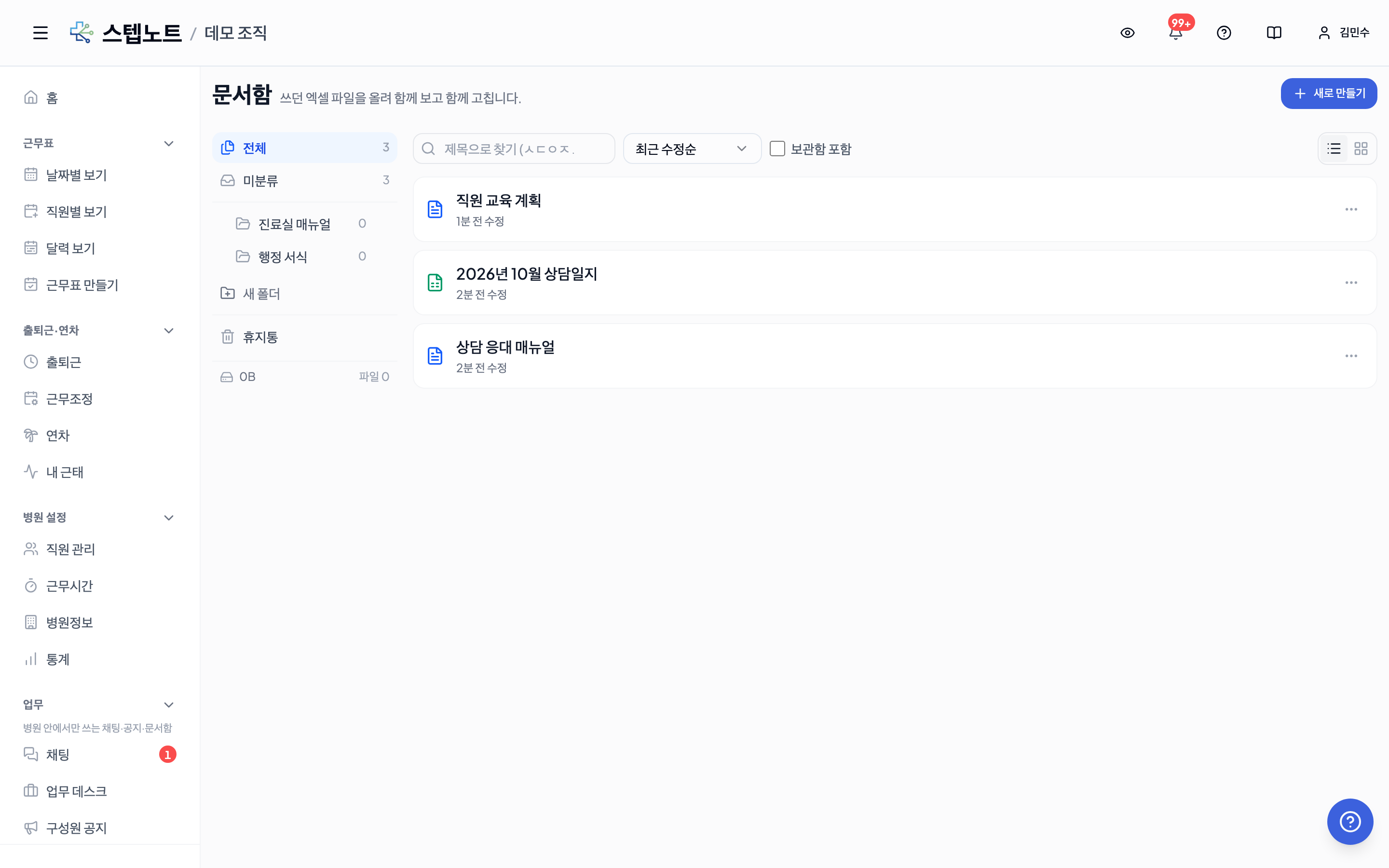
- Folder rail on the left: All / folder tree (up to 3 levels) / Trash. The number next to a folder is how many items (subfolders + documents) sit directly inside it. On mobile, folder chips run horizontally above the list instead of the rail.
- Document list on the right: the top toolbar has search by title (Korean initial-consonant search works too), sorting, and a list/card view toggle.
- Storage meter: the storage the library has used so far is shown under the list.
10.2 Creating and importing
Every way to start lives under the single "New" button at the top right.
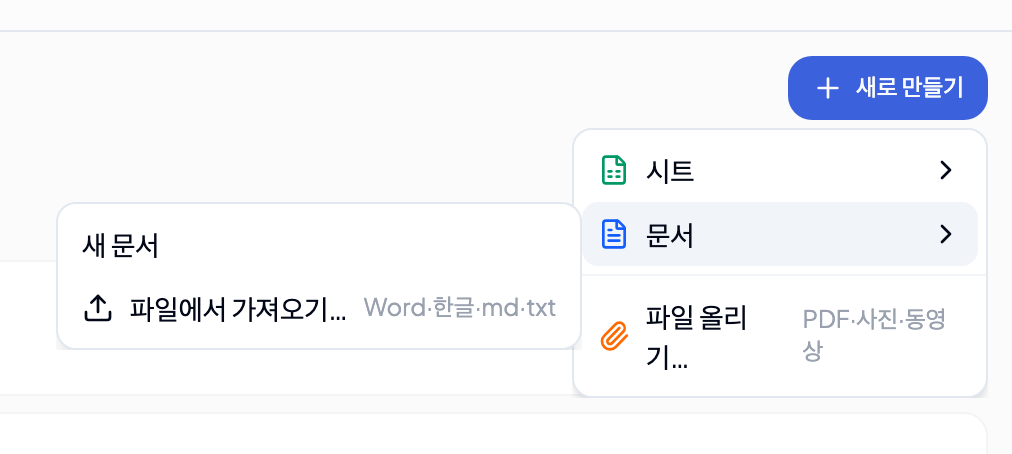
| Menu | What it does | Accepted files |
|---|---|---|
| Sheet ▸ New sheet | Creates an empty spreadsheet | — |
| Sheet ▸ Import from Excel… | Converts an Excel file into an editable sheet | .xlsx .xlsm .xls .csv |
| Document ▸ New document | Creates an empty text document | — |
| Document ▸ Import from file… | Converts Word, HWP, Markdown, or text into an editable document | .docx .hwp .hwpx .md .txt and more |
| Upload file… | Stores the file view-only without conversion | PDF · photos (and videos on the web) |
| Upload video… (app only) | Picks a video from the phone gallery | Videos up to 5 minutes |
| New folder | Creates a folder at the current location | — |
Choosing a menu item opens a dialog asking for a title and visibility. For imports, the title is pre-filled with the file name.
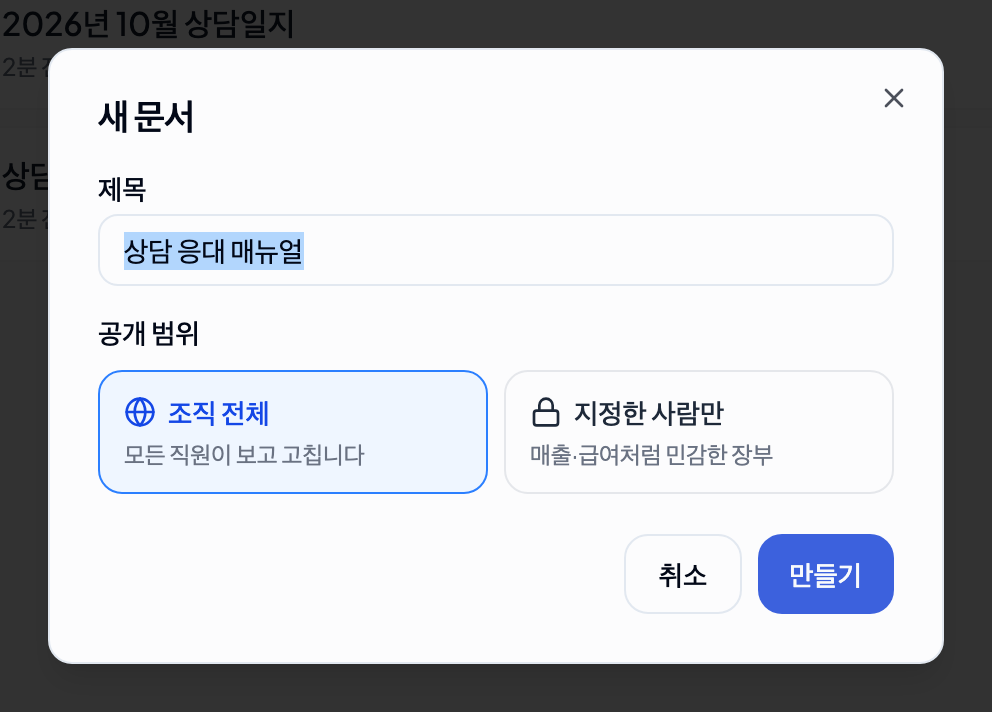
⚠️ Imports cannot be undone. Before importing, a note explains what carries over and what is dropped, so check it before continuing. Formulas in HWP documents are converted where possible, and you are told how many could not be. Formatting (colors, merged cells, column widths) is preserved as far as possible.
💡 PowerPoint (
.ppt/.pptx) and archives (.zip) can only be stored via Upload file and are offered as downloads without a preview.
10.3 Visibility — who can see it
Documents and folders each take one of two settings.
| Option | Meaning |
|---|---|
| Entire organization | Every current member of the clinic can see it |
| Selected people only | Only the people you pick. The creator and the clinic owner can always see it; an organization admin cannot unless named |
- Visibility is set on creation and can be changed later from the document ⋯ menu → Visibility (for folders, folder menu → Visibility).
- Folders only narrow access. Subfolders and documents inside a private folder are visible only to the named people, but a public folder never opens up a private document inside it. Moving a private document into a public folder does not leak it to other staff.
10.4 Editing sheets (spreadsheets)
Imported Excel files and new sheets are edited right in the browser, and saves are merged cell by cell — if two people changed different cells, both changes land.
- Dropdown lists (data validation) and conditional formatting that changes colors by value (highlights, data bars, color scales, icons) are supported.
- Auto-generate daily tabs: for ledgers kept as one tab per date, the next date's tab can be created in one go instead of copying by hand.
- Files that contained macros (
.xlsm) do not run them, but View macros shows that they existed and what they contained. - You can export back to Excel (
.xlsx/.xlsm). - Print: on-screen colors, merges, and column widths are kept, and wide sheets are scaled to fit one page automatically.
10.5 Editing documents (text)
Create and edit report- and notice-style text you used to write in Word or HWP.
- The toolbar offers formatting, page setup, find and replace, table of contents (outline), footnotes, and equations.
- Tables and images can be resized freely.
- Export to Word (
.docx) and print are supported. HWP equations are converted and survive the Word export. - Who is currently viewing the same document is shown above the editor.
10.6 Organizing with folders
As documents pile up, split them into folders. Subfolders go up to 3 levels deep, e.g. Cash count › 2026 › January.
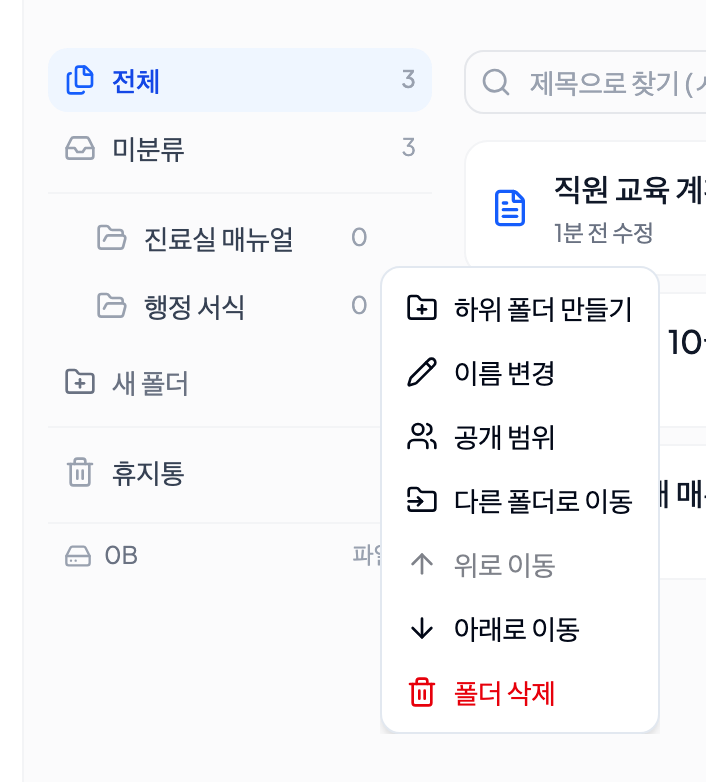
- Folder ⋯ menu: Create subfolder · Rename · Visibility · Move to another folder · Move up/down · Delete folder. Only owners and admins can reorder, and the whole organization sees the same order.
- Move documents with ⋯ menu → Move to another folder.
- Deleting a folder sends its subfolders and documents to the trash with it. If the folder contains even one item you lack permission to delete, the deletion is refused and only the number of blocked items is shown (not which ones).
🔒 A single document can be deleted only by the person who created it and the clinic owner. Even an organization admin cannot delete someone else's document.
10.7 Trash (kept 30 days)
Deleted folders and documents do not vanish at once; they stay in the Trash for 30 days and are then permanently deleted automatically. Open Trash at the bottom of the folder rail.
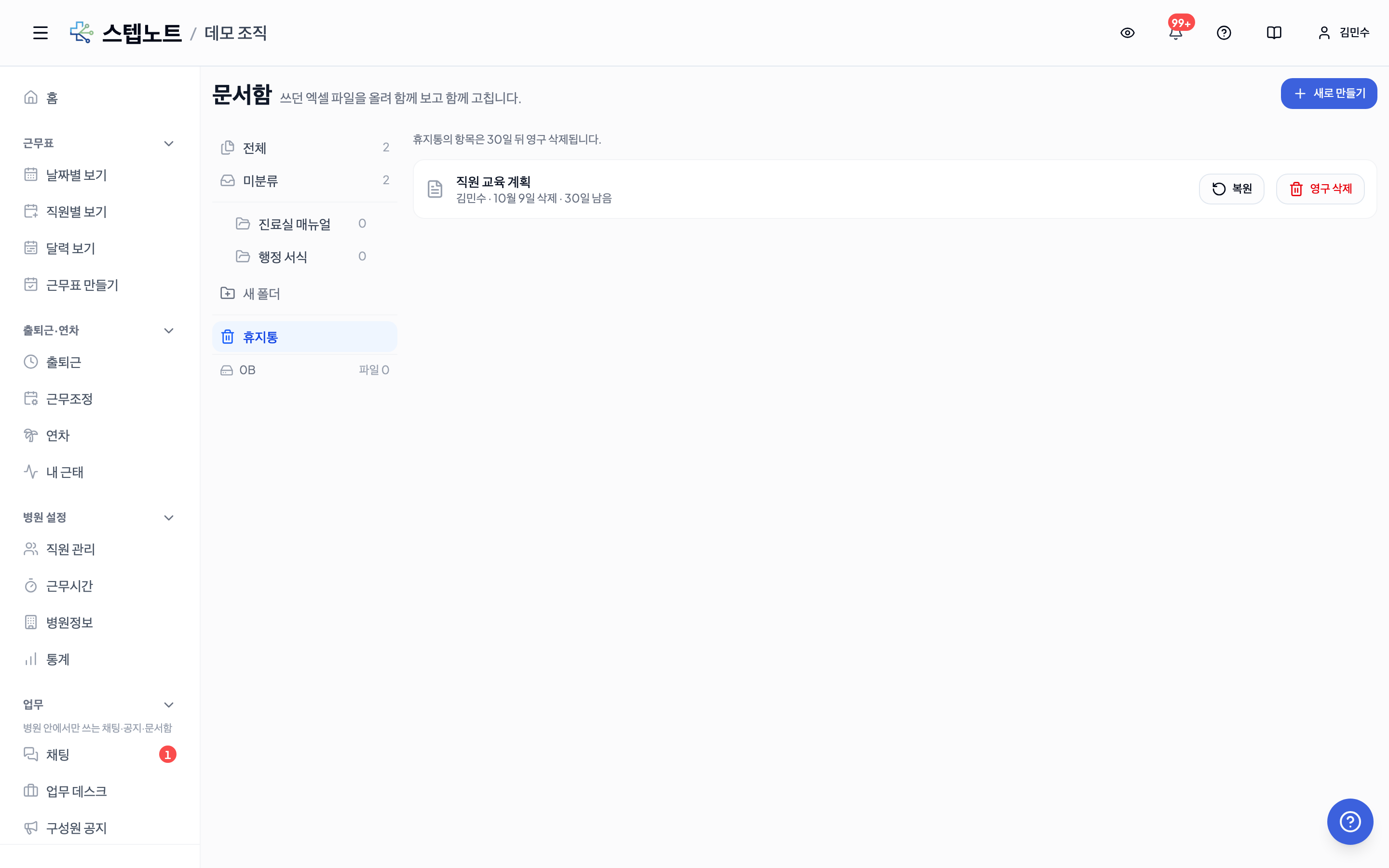
- Restore brings back the whole deleted bundle (a folder plus its contents). If its original parent folder is still in the trash, you are asked to restore that first.
- If a document with the same name already exists at the destination, the restored item gets a "(restored)" suffix.
- Delete permanently, which skips the 30-day wait, is owner-only and cannot be undone, so you confirm by typing the item's name.
10.8 To and from chat
- Send to chat: use the "+" menu → Share document to the left of the chat composer to send a library document into a chat room as a card. Recipients tap the card to open it (it will not open for people outside its visibility).
- Save a chat attachment to the library: long-press (right-click on desktop) a message with a photo, video, or file attached and choose Save to document library; set a title, folder, and visibility. It points at the same file rather than copying it, so storage does not double. See the message action menu in 9. Work Board · Chat.
FAQ
I don't see the document library in the sidebar. Work tools are off for this clinic. Turn on the "Use work tools" switch on the Getting Started tab or in clinic settings. The Work menu then appears at the bottom of the sidebar with the document library inside it.
Can several people edit at the same time? Live co-editing in one screen is not supported yet. Each save is merged cell by cell for sheets and paragraph by paragraph for documents, and who is viewing right now is shown on screen.
How long can uploaded videos be? Up to 5 minutes, via Upload file on the web or Upload video in the app. Videos are converted for transfer before upload and appear in the library with a preview frame and play button. If a format cannot play, Open original downloads it.
Do PowerPoint files open?
.pptx is not converted yet, so it can only be stored via Upload file and is offered as a download instead of a preview.