8. Homepage builder
8. Homepage Builder
Audience: Clinic directors, clinic admins (Owner / Admin)
Purpose
Automatically generate a public landing page for patients — clinic introduction, medical staff, services, directions, booking requests, and more — with AI, and edit and publish it directly from the sidebar.
With no separate design or development work, just go through the 4-step wizard (Style → Strengths → Clinic Info → Review) and a clinic homepage is created. You can reorder medical staff, services, features, and FAQ items with drag and drop in the left sidebar.
A single home page is enough to start with, but topics with a lot to say — services, medical staff, directions — can be split into multiple pages linked from the header menu with a two-level dropdown (8.4). You can also keep Korean as the source and publish English, Japanese, and Chinese alongside it (8.6).
8.1 Opening the Homepage Builder
Click the Extras → Homepage menu in the left sidebar of the clinic page.
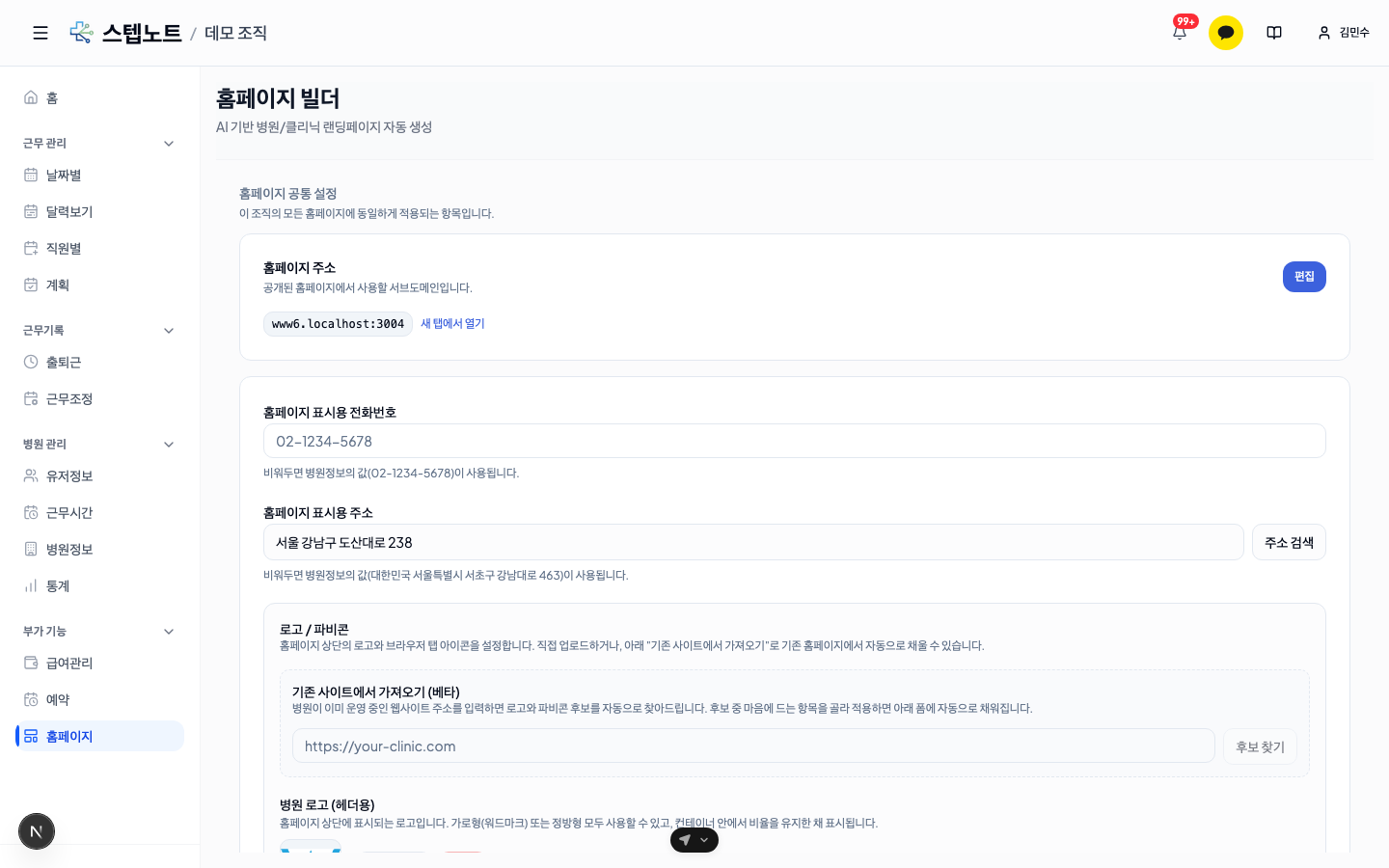
At the top is the shared homepage settings section. These settings apply equally to all homepages of this organization.
| Item | Description |
|---|---|
| Homepage address | The subdomain the public site will use (e.g., www6.your-domain) — once set, all pages share it |
| Display phone number | If left empty, the main phone number from the clinic info is used as-is |
| Display address | If left empty, the address from the clinic info is used as-is |
| Logo / favicon | Header logo and browser tab icon. Enter the URL of a site you already operate and candidates are fetched automatically (beta) |
💡 Shared settings come first. You can create multiple pages, but the address, phone number, and logo are kept as a single set across the organization.
8.2 Creating a New Homepage — 4-Step Wizard
Click the "Create new page" button to open the wizard. The top shows 4 steps — Style → Strengths → Clinic Info → Review — and you move through them with the Previous / Next buttons at the bottom. You can quit at any time with Cancel (if you've entered anything, a confirmation dialog warns that what you've chosen so far will be lost).
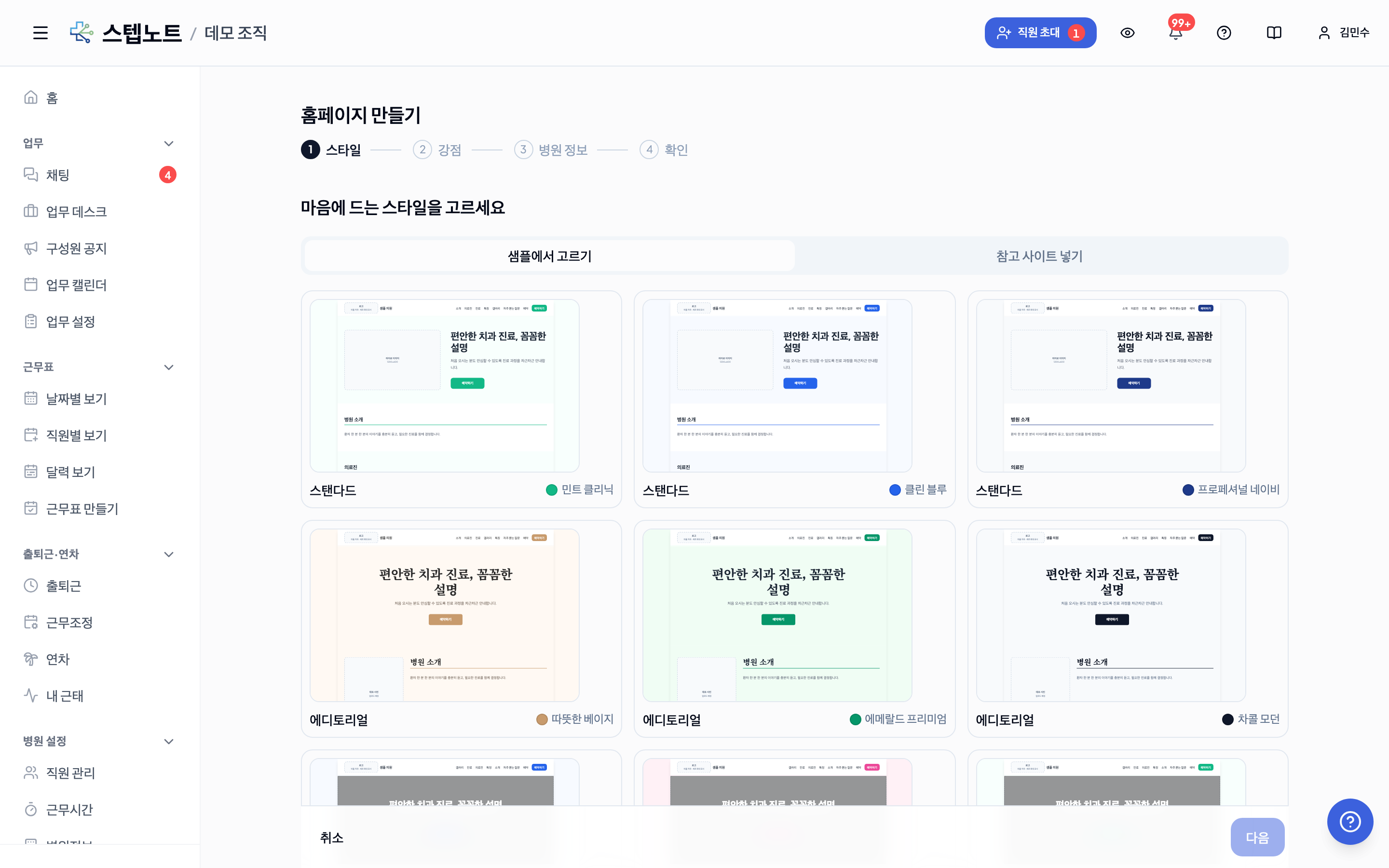
1. Style
Choose either Pick from samples (default) or Enter a reference site.
- Pick from samples: 4 looks — Standard, Editorial, Showcase, Compact — each with 3 recommended themes, for a total of 12 cards shown as scaled-down previews of the actual page. Click a card to open a full-screen, full-size preview, where you can try out 8 predefined colors (or enter a hex code with Custom) right there. When you find one you like, click "Start with this style".
- Enter a reference site: If there's another clinic homepage you already like, enter its address and click Analyze. The sample card closest to the analysis result is selected automatically, and you can switch to a different card if it's not quite right.
- Turn on the "Create multiple pages" toggle below to also create Services, Medical Staff, and Directions pages alongside the home page (see 8.4). If the multiple-pages paid feature is off for your organization, the toggle shows a lock icon and clicking it opens the feature inquiry window. The Compact style is single-page only, so this toggle can't be turned on with it.
2. Strengths — Up to 6
Pick 1 to 6 features of your care/services.
- Latest equipment · Transparent non-covered pricing · Expert medical staff · Friendly consultations · Great accessibility · Reasonable cost
- Fast booking · Evening hours · Parking available · Remote consultations · Multilingual care · Regular checkups
- + Custom input — Add strengths not in the list above yourself (one line each)
3. Clinic Info (New — review and edit before generating)
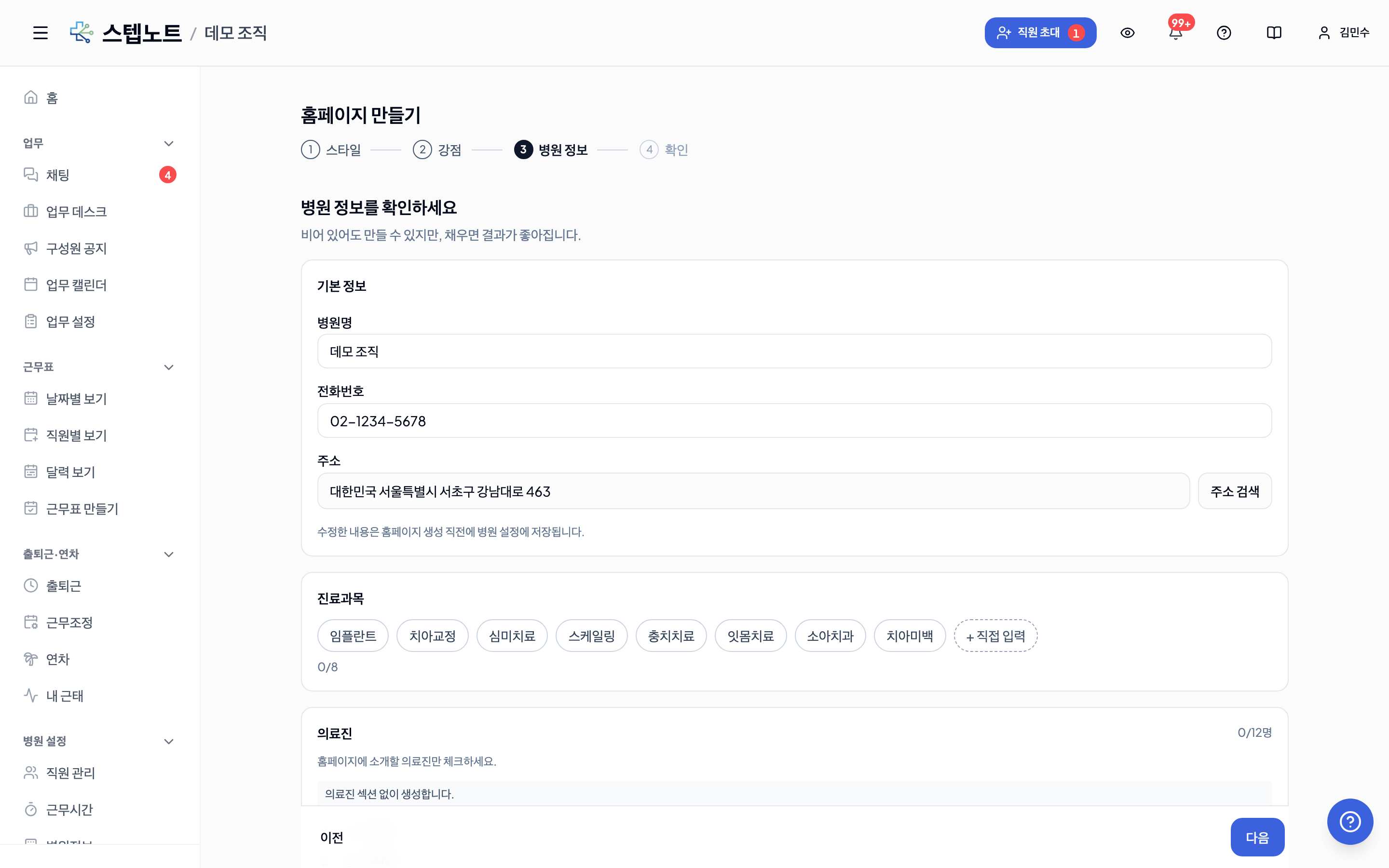
You can move on even with this step left blank, but the result gets better the more you fill in.
- Basic info — Clinic name (required), phone number, address. Already-registered clinic info is pre-filled here, and editing it in this step also saves it back to Clinic Settings right before the homepage is generated.
- Services — Up to 8, with recommended items for your category plus custom input.
- Medical staff — Your registered members are shown as a checklist, but everyone starts unchecked. Check only the people you want to introduce on the homepage. Staff who aren't members can be added with "+ Add Non-member." If no one is checked, the page is generated without a medical staff section (it is no longer auto-filled with unnamed placeholder staff as before).
- Logo/favicon — Shown as a preview of your current settings only. To change them, use the shared settings in 8.1.
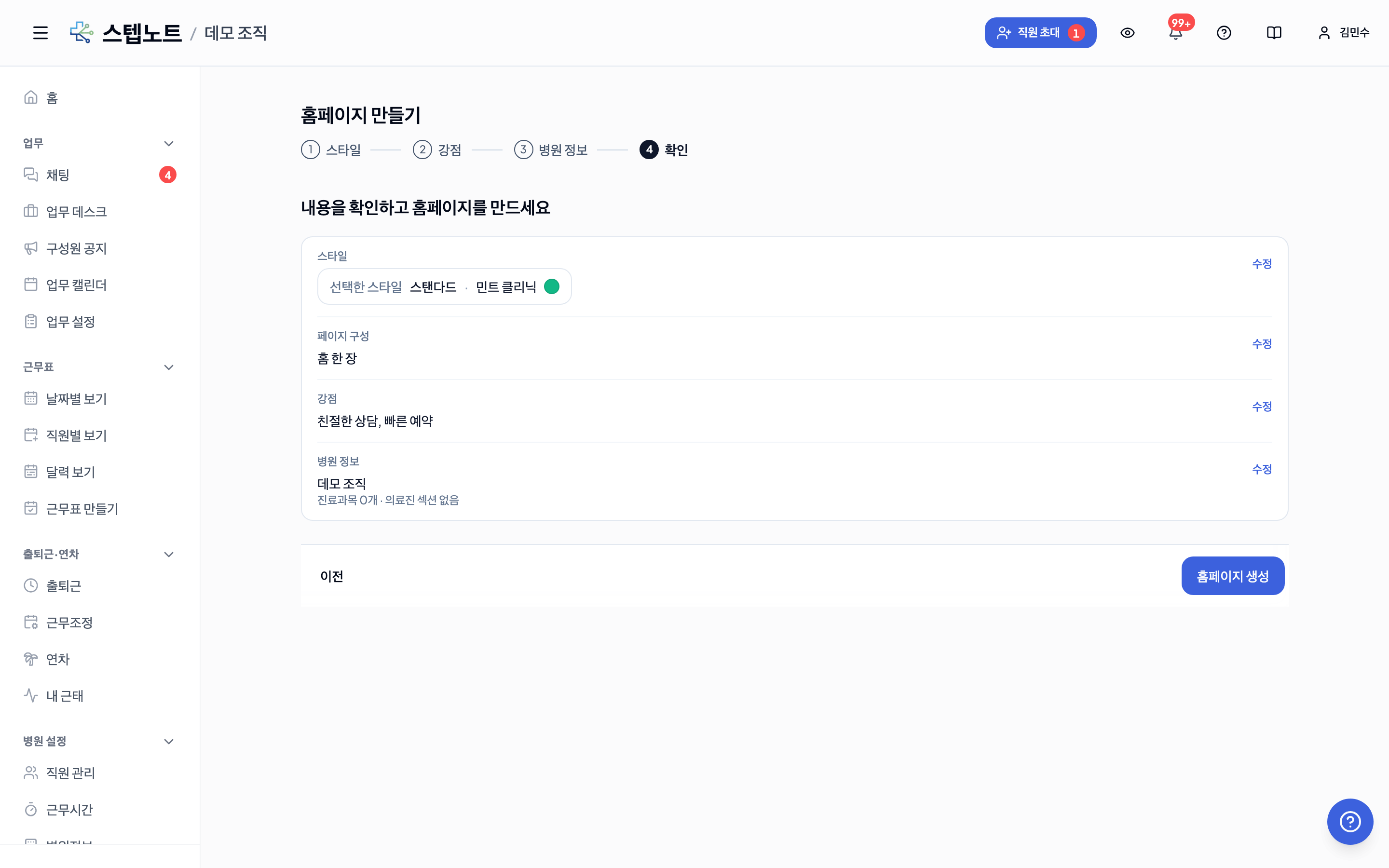
4. Review
Shows a summary of the style, page setup, strengths, and clinic info you've chosen so far. Click "Edit" next to any item to jump straight back to that step. When everything looks right, click "Generate Homepage".
💡 Category applied automatically: The LLM prompt is adjusted automatically to match the clinic info category (13 types including dentistry, Korean medicine, obstetrics/gynecology, dermatology, ophthalmology, orthopedics, internal medicine, pediatrics, ENT, urology, psychiatry, plastic surgery, and family medicine). Even for the same strength, service items, image keywords, and wording tone appropriate to the category are generated, and terms restricted under medical advertising law are filtered per category.
Generation takes about 20–40 seconds, and the screen shows progress in order — "Loading clinic info → Building the design → Finishing up." When it finishes, you are switched automatically to the CMS editing screen.
8.3 CMS Editing Screen — Left Sidebar + Live Preview on the Right
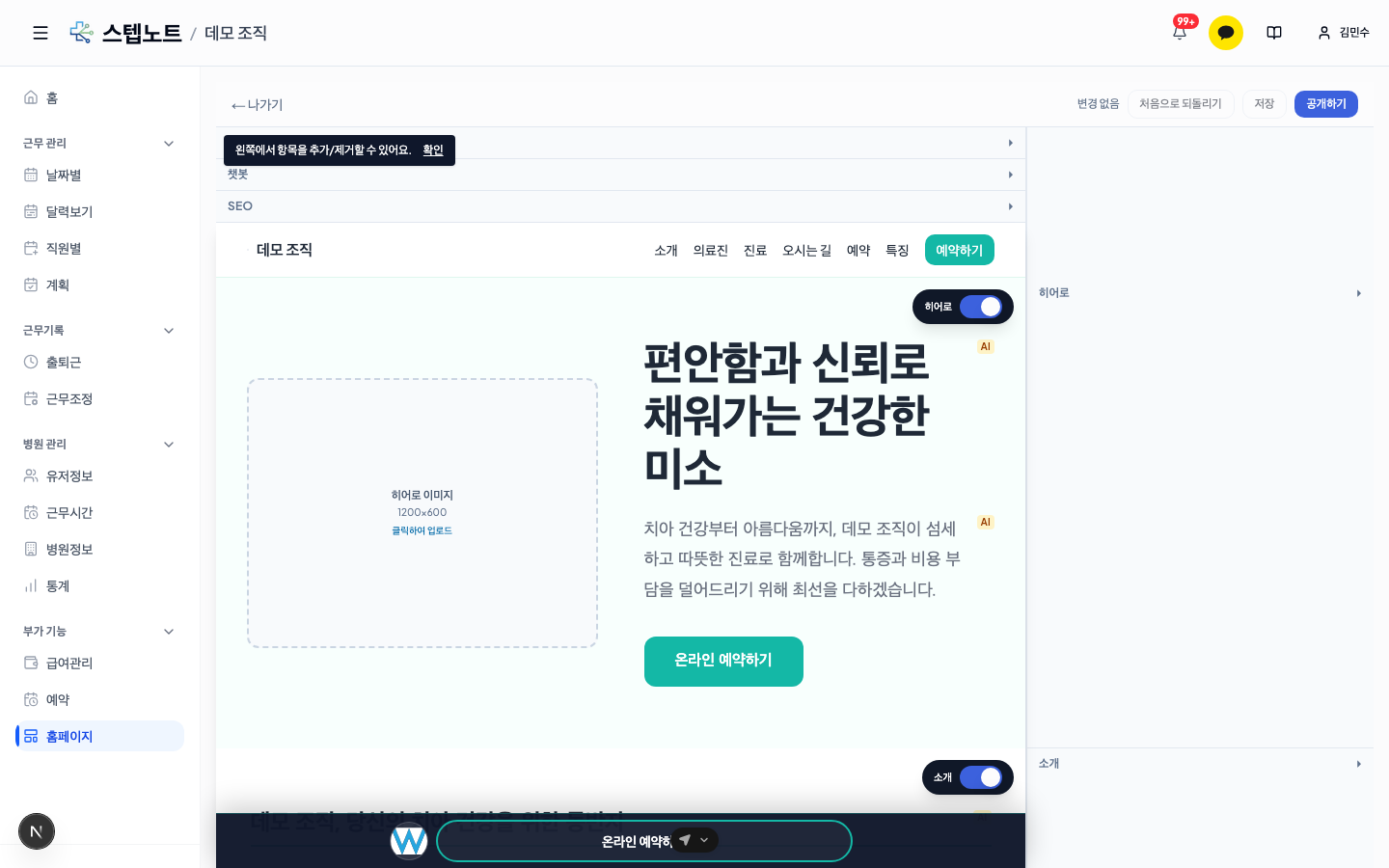
The layout is simple.
| Area | Role |
|---|---|
| Top | ← Exit · change indicator (No changes/Changes) · Reset to Initial · Save · Publish |
| Left panel | From the top: the Pages list (8.4) → per-section editing items — accordion |
| Shared settings | The accordion above the preview — style settings · chatbot · SEO · Languages (8.6). These apply to the whole site |
| Center panel | Live preview — each section has an on/off toggle, and text can be edited directly by double-clicking |
| Right guide | Page structure guide synced to the preview position (hero → introduction → medical staff → …) |
Frequently Used Actions
- Save: You must explicitly press the
Savebutton for changes to be applied (there is no auto-save). When there are changes, aChangesbadge appears at the top. - Publish: With a slug set, pressing it shows a short confirmation dialog (
Publish this page?); pressPublishand it takes effect immediately. Pressing it again on an already published page unpublishes it. - Reset to Initial: Restores the page to its state right after generation, not the last save.
- AI badge: Items with a yellow
AIbadge next to the text were generated automatically by the LLM. The badge disappears when you edit them yourself.
8.4 Creating Multiple Pages
You start with a single home page, but topics with a lot to say — services, medical staff, directions — can be split into separate pages. Manage them in the Pages group at the very top of the left sidebar.
⚠️ Multiple pages is a feature you have to request. While it is off, the button reads
Add page (paid)and opens a feature request window. Once the StepNote team turns it on for your organization, you can use it right away.
Adding a page
Press + Add page and set the following.
| Item | Description |
|---|---|
| Type | Service detail / Medical staff / Directions & info / Blank page — the section skeleton matching the type is laid out for you |
| Page title | The name used in the browser tab and the header menu |
| Parent menu | Add as a top-level menu or under an existing page — placing it under a page turns it into a dropdown item in the header (menus go two levels deep) |
| Page address | The slug appended to your address. If you pick a parent menu it nests under it, like /services/implant |
| Fill a draft with AI | Turn it on and draft copy is written to match your clinic info and category (not applicable to blank pages) |
What you can do in the page list
| Action | Description |
|---|---|
| Click the name | Switches to editing that page. If you have unsaved changes it is locked and shows Save first to move to another page. |
| Eye icon | Show / hide in the header menu. The page itself stays alive; only the menu entry is removed |
Publish / Unpublish | Per-page publishing. A published page gets a green globe icon |
| Six-dot handle (⋮⋮) | Drag to reorder — this order is the header menu order. You can only move items within the same parent |
| Trash | Deletes the page. There is one confirmation, and deletion cannot be undone |
- Home is special. It cannot be deleted, hidden, or reordered, and always stays at the top.
- A site can hold up to 40 pages including home. The
3/40next to the button is your current count. - The parent menu can only be set when you create the page. To change it later, delete the page and create it again.
💡 Publishing has two steps. Pressing
Publishon a page still hides it from patients if the site itself is not published. The site is published with thePublishbutton at the top.
8.5 Header Menu and Social Channels
Header menu
There is no separate screen for building the menu. Pages that are published and set to show in the menu become the header menu, in the same order as the sidebar.
- On desktop, an item with child pages expands on hover. The parent item is a page too — clicking it opens that page.
- On mobile, open the hamburger menu and press ▾ to expand the child items.
- The menu label is the page title.
Social channels
Enter a URL under Social channels inside the Booking accordion in the left sidebar, and it appears as an icon on the right side of the header.
- Supported: KakaoTalk Channel · Naver TalkTalk · Naver Blog · Instagram · YouTube · Facebook
- Clearing the URL removes that channel — there are no separate add/remove buttons.
- The display order is fixed to the order in the list above.
8.6 Publishing in Multiple Languages (English · Japanese · Chinese)
Your Korean page stays the source, and only the languages you turn on are machine-translated and published alongside it.
Turning a language on
Open the Languages accordion in the shared settings above the preview (next to style settings, chatbot, and SEO).
- Korean is the source and is always published. It cannot be turned off.
- Tick English · 日本語 · 中文 for the languages you want. One is fine, so are all three. (Chinese is Simplified.)
- Once on, each language shows progress like
58/411 translated. If you edited the Korean source and a translation went stale,· source changed 3appears next to it.
Filling in translations
- Pressing
Publishtranslates automatically — only the strings that are missing or stale. Already-translated strings are left alone, so the second run is much faster. - To fill them right now instead of waiting, press
Translate nownext to the language. - Turning a language on does not translate anything by itself. Either
Translate noworPublishhas to run. - With many pages, one run may not finish everything. You then see a notice that the rest will be translated on the next publish, and the next run picks up where it left off.
Polishing translations
Press Polish translations next to a language to pick a page and fix strings one by one. The Korean source and its translation are shown side by side.
💡 Strings you edit yourself are never overwritten by machine translation. Wording you must keep exact — the clinic's name, official English names of treatments — only has to be fixed once here.
What patients see
- Korean has no prefix in the URL. Korean is
https://slug.stepnote.site/, English is/en, Japanese/ja, Chinese/zh, and sub-pages follow as/en/doctors. - With two or more languages on, a language menu appears automatically in the header of the public page (inside the hamburger menu on mobile).
- Untranslated strings simply show the Korean text. A half-finished translation never leaves the page blank or broken.
- Search engines receive the language versions of a page linked to each other (hreflang).
Not supported yet
- SEO title and description are not translated yet. Even on
/en, the browser tab title and search snippet stay in Korean. - The confirmation message shown after a booking is submitted is in Korean.
- Text drawn inside images and logos is not translated.
8.7 Medical Staff / Services / Features / FAQ — Drag-and-Drop Reordering
In these four sections you can not only add/remove items in the left sidebar but also freely reorder them.
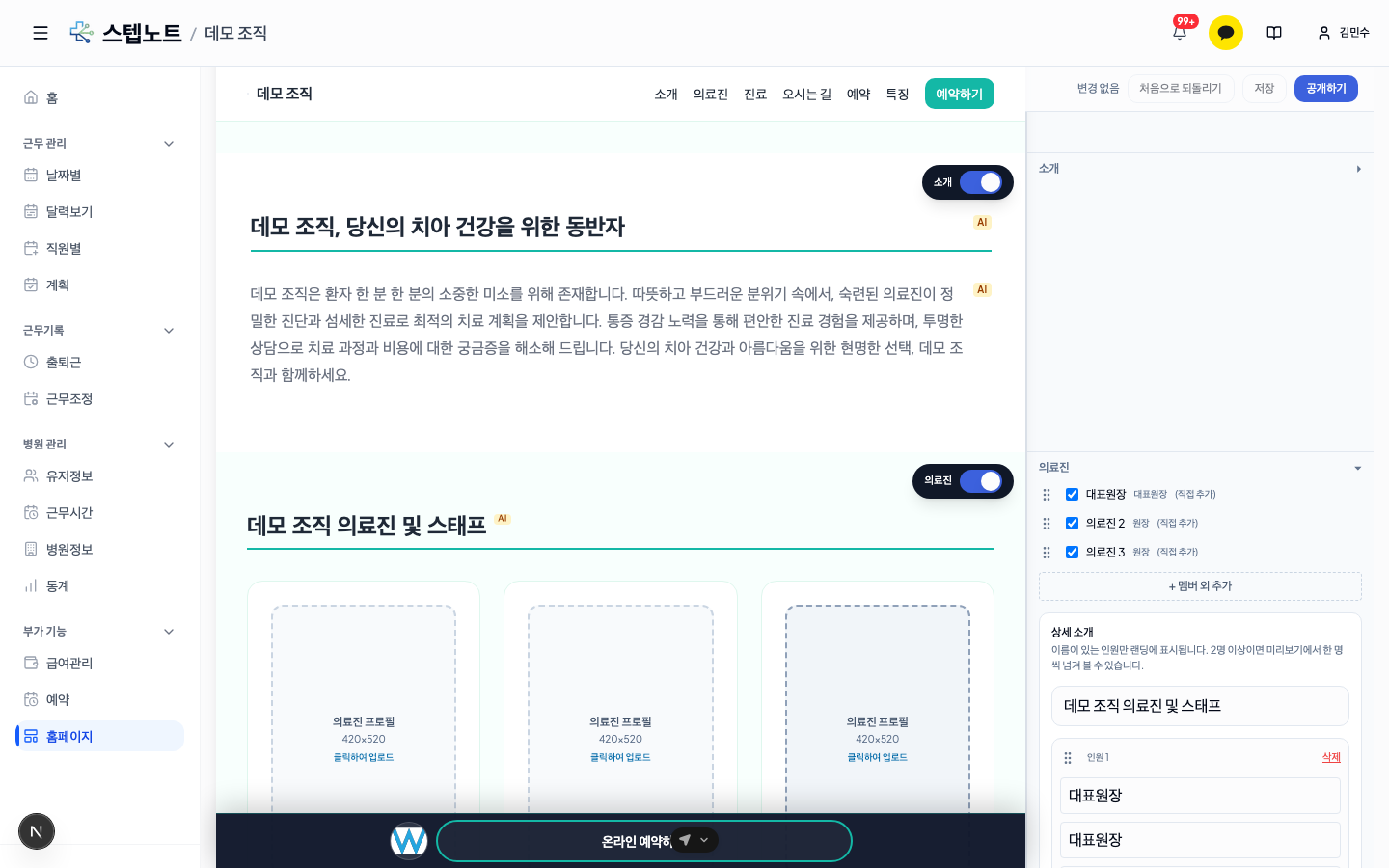
How to Use
- Open the Medical Staff / Services / Features / FAQ accordion in the left sidebar.
- Grab the six-dot handle (⋮⋮) on the left of each item with the mouse.
- Drag up/down to change the order; the preview reflects it immediately.
Notes When Dragging Medical Staff
Medical staff appear in two places.
- Top checklist — visibility toggle
- Bottom detail form — name/title/introduction inputs
The order of the two areas is synchronized automatically. Dragging in either one gives the same result. Each staff member's photo slot moves along too, so there is no need to re-upload photos.
💡 Two ways to add medical staff: Enter them directly with the sidebar's
+ Add Non-memberbutton, or create a new slot with+ Add Medical Staff.💡 The homepage creation wizard lets you pick from registered members with a checklist (see Step 3 "Clinic Info" in 8.2). Only checked members become medical staff, and if no one is checked, the page is generated without a medical staff section — it is no longer auto-filled with unnamed placeholder staff as before. When adding/removing directly in the CMS screen, registered staff still aren't suggested automatically as candidates, so use the two methods above instead.
8.8 Editing Directly in the Preview
In the center preview, double-click text to edit it inline. You don't have to hunt for each input field in the sidebar.
Use the toggle switch at the top right of each preview section to turn that section off or on instantly. Sections that are turned off do not appear on the public page.
For slots with images (hero/medical staff photos/gallery), click to upload. Uploaded images are stored by slot key, so they follow along even if you reorder the medical staff.
8.9 Booking Panel (Sticky Booking Bar)
Every generated page has a fixed booking panel always visible at the bottom of the screen.
- The
Book Nowbutton in the header,Book Onlinein the hero, andRequest Consultationat the bottom of the preview all open the same booking panel — they do not navigate to an external URL. - Input fields: name, contact number, preferred date, preferred time, requests, and privacy consent.
- Received bookings can be checked in the left sidebar Extras → Bookings menu.
8.10 Publishing and Slugs (URLs)
- Before publishing, you must set a slug (subdomain). Example:
gangnam-smile - The public URL uses the subdomain format, like
https://gangnam-smile.stepnote.site. - Sub-pages append their page address:
…/doctors, and two-level menus…/services/implant. - With other languages turned on, they carry a prefix:
…/en,…/ja/doctors(8.6). - We recommend not changing the slug once the page is published (it affects SEO and bookmarks).
- After publishing, the site card shows a
Publishedbadge, and pressing the Publish Again button lets you unpublish it.
💡 stepnote.site directory: Visit
www.stepnote.siteto see published clinic sites as cards. It is a public hub where patients can search and find clinics directly.
Frequently Asked Questions
Q. I don't like the AI-generated result. Can I regenerate it? A. Only one page is generated per vibe/color/strengths combination. Create a new page or edit the text directly in the CMS. Reset to Initial restores the state right after generation, not the last save.
Q. Can one site hold several pages? A. Yes. With the multiple pages feature turned on you can create up to 40 pages including home and link them from the header menu (8.4). The address, phone number, and logo are shared at the organization level, so every page uses the same ones.
Q. A translation reads awkwardly. If I fix it, will the next publish overwrite it?
A. No. Strings you edit under Polish translations are left untouched by machine translation, which only fills in strings that are missing or whose source changed.
Q. Can I publish just one page in English? A. Languages are turned on per site. Untranslated strings fall back to Korean, though, so you can translate the important pages first and the site still works.
Q. Is it fine to publish before every translation is filled in? A. Yes. Untranslated spots show the Korean text, and the next publish continues from where the translation stopped.
Q. Don't staff registered in the sidebar automatically appear as medical staff candidates? A. The wizard for creating a new homepage (Step 3 in 8.2) lets you pick from registered members with a checklist. But on an already-created page's CMS screen, there's still no automatic link — add/enter medical staff directly there.
Q. Where do bookings come in? A. You can check them in the Bookings menu in the left sidebar. It is the same screen as chatbot bookings.