1. Inviting members
1. Inviting Members
Audience: Directors, clinic admins
Purpose
Invite the staff and external collaborators who work at your clinic and add them to your organization.
Before You Start
- You need Admin or Owner permissions.
- Have the email address or mobile phone number of the person you want to invite ready.
3 Ways to Add Members
Open Clinic Settings → Staff Management in the left menu, and you'll find the following 3 methods at the top right. The question mark (?) icon in the header gives you an at-a-glance comparison of which method fits which situation.
| Method | When to use it | Result |
|---|---|---|
| Invite user | Sending a 1:1 invite to a specific staff member who will use the app | An invite link is sent by email/KakaoTalk/SMS |
| Register staff without an account | Staff who won't use the app (contract, part-time, etc.) | Added to the roster only; the admin manages their attendance and schedule on their behalf |
| Share signup link | Inviting several people at once | Share a QR/link → each recipient submits their own join request |
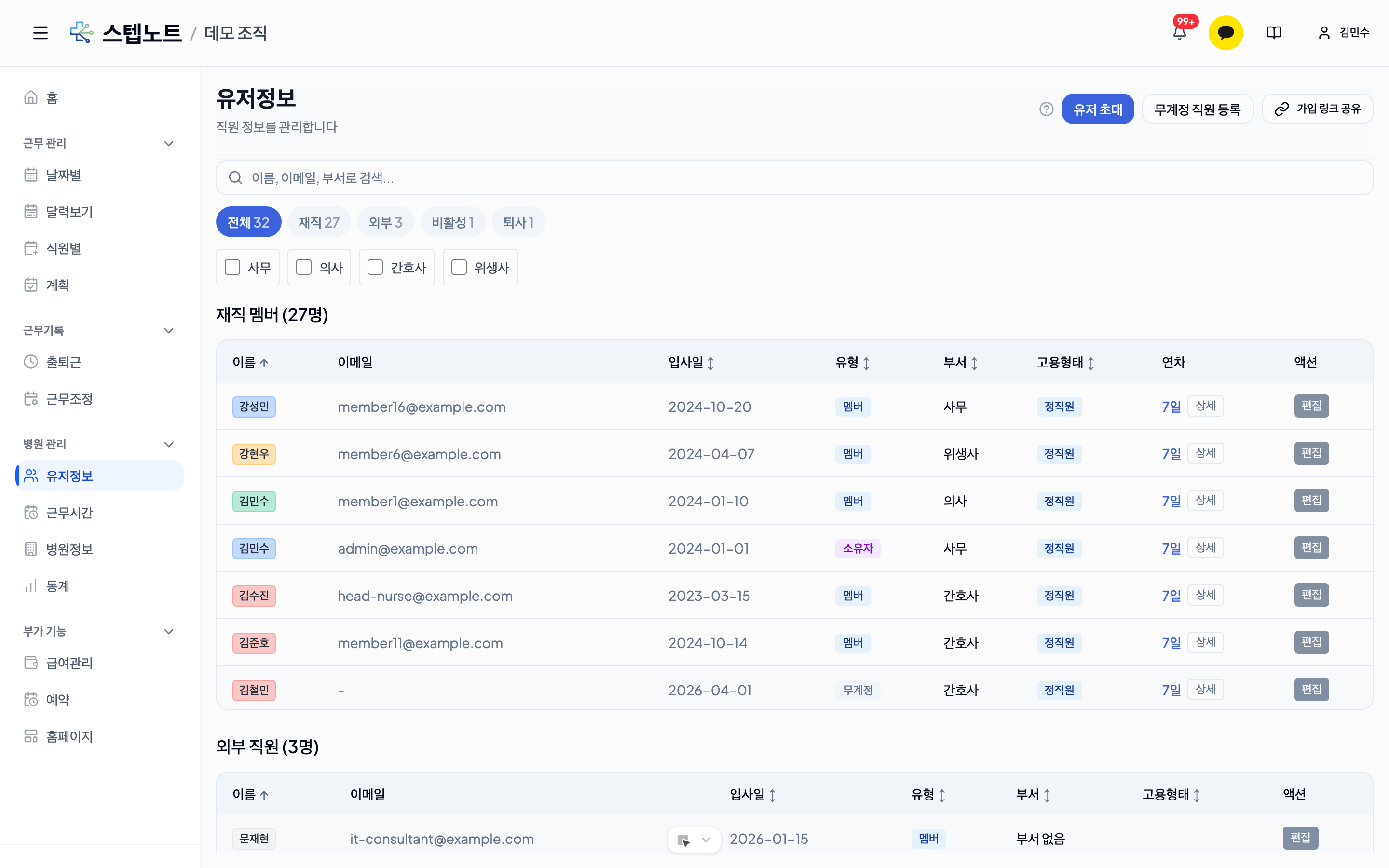
Use the All / Active / External / Inactive / Resigned chips above the list to view only the group you want, and layer department filters on top with the department chips below.
💡 If you still have few staff, you can copy the signup link right away from the "Invite staff" button (new) in the header, no matter where you are in the app. It appears automatically when you have fewer than 3 staff members or have pending join requests — see 1.3 for details.
💡 If you just created your clinic, step 1 Invite your staff in the Get started tab in the left menu lets you copy the link right away with Copy invite link. Staff who won't use the app can be added there with Add staff who won't use the app by name using just a name and an optional department; you can link an account later by inviting them from Staff management.
1.1 Invite User (1:1 Invite)
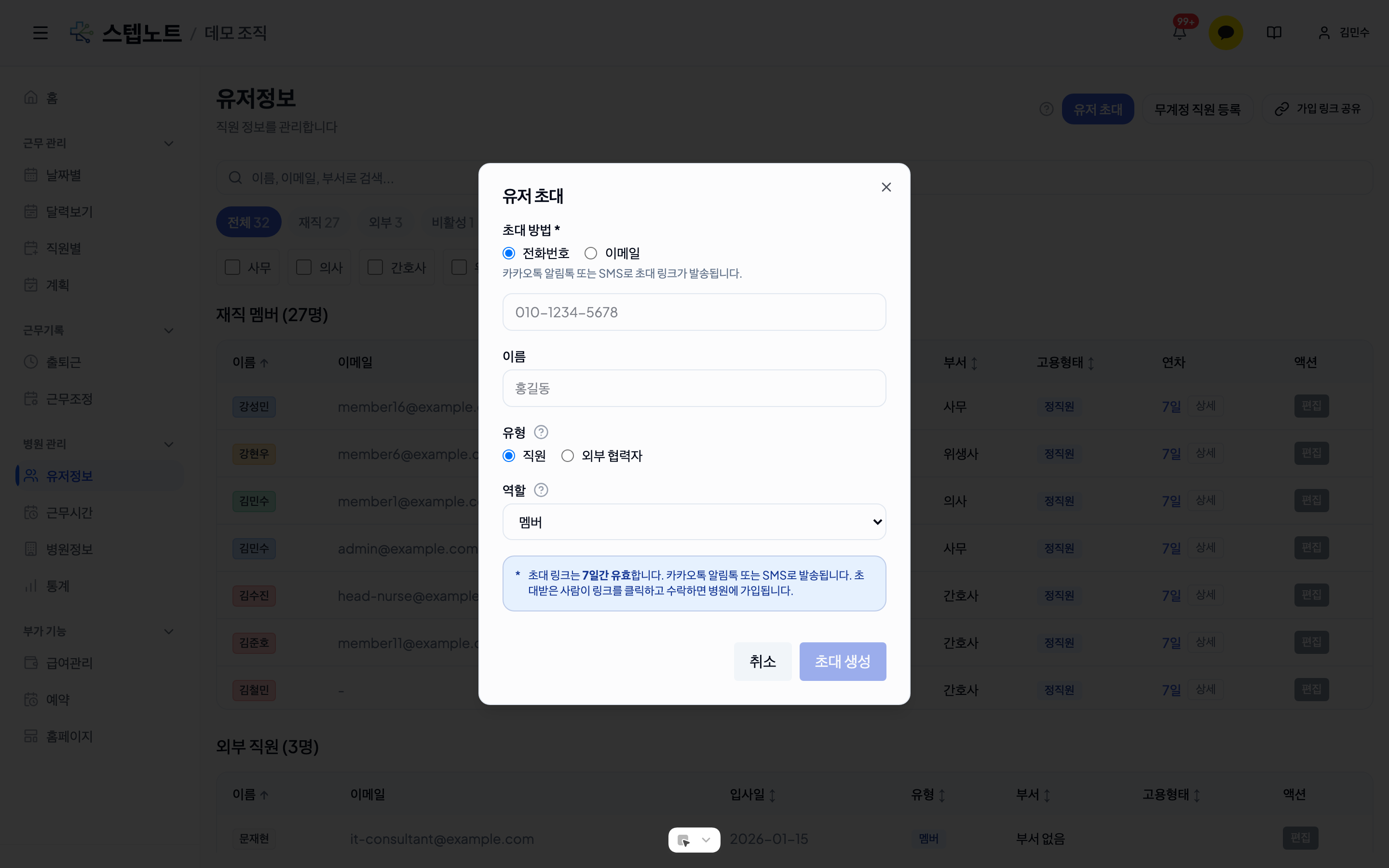
- Open the modal
- Click the "Invite user" button at the top right of the Staff Management screen.
-
Choose the invite method
- Phone number: sends the invite link via KakaoTalk notification message or SMS.
- Email: sends the invite link by email.
-
Enter contact details
- Enter the mobile phone number or email address, depending on the method you chose.
-
Name (optional)
- Enter the recipient's name. They can change it themselves later.
-
Choose the type
- Staff: a regular staff member. Included in schedule, attendance, annual leave, and payroll management.
- External collaborator: an outside party such as a labor consultant or tax accountant. Excluded from schedules/attendance/annual leave/payroll; you grant individual permissions only.
-
Choose the role (staff only)
Role Permissions Member Can only view their own schedule Admin Can manage members, enter schedules, and grant annual leave Owner All permissions (including deleting the clinic) 💡 There can be only one Owner per clinic. If the clinic already has an Owner, the Owner option is not shown.
-
Grant permissions (external collaborators only)
- Use the checkboxes to grant view / manage permissions per domain.
- Example: grant a labor consultant "view" on the payroll domain only.
-
Create the invite
- Click the "Create invite" button and a confirmation modal appears with the invite link.
- It is sent automatically to the contact you entered, and you can also copy and share the link directly from the screen.
Sharing the Invite Link
In the modal shown after creating the invite:
- Copy link: copies it to the clipboard
- Share via KakaoTalk (mobile): sends it as a KakaoTalk message
- More: uses your device's native share sheet
💡 If KakaoTalk/SMS delivery is delayed, a notice appears in the modal. In that case, copy the link below and share it directly.
1.2 Registering Staff Without an Account (Direct Registration)
Use this when you want to add staff who won't use the app to the roster only.
- Click the "Register staff without an account" button at the top right of the Staff Management screen.
- Enter basic details such as name and department.
- They are added to the member list immediately, marked with an "Admin-entered" badge.
- If they later decide to use the app, you can send them an invite link with the "Convert" feature.
For details on managing them, see 2. Managing Members → sections 2.6 and 2.7.
1.3 Sharing a Signup Link (Inviting Multiple People)
The most convenient way to invite several staff members at once.
- Click the "Share signup link" button at the top right of the Staff Management screen.
- Choose Copy link / Share via KakaoTalk / More.
- Recipients open the link, sign in, and press the "Request to join" button to submit a join request.
- Admins can review the requests in the Join requests section of the Staff Management screen and approve or decline them.
Signup links never expire. If exposure is a concern, switch to another method once you're done using it.
You Can Also Copy the Signup Link From Elsewhere (New)
You don't need to go all the way into Staff Management — click the "Invite staff" button in the header at the top of the screen, and the menu that opens lets you copy the signup link right away.
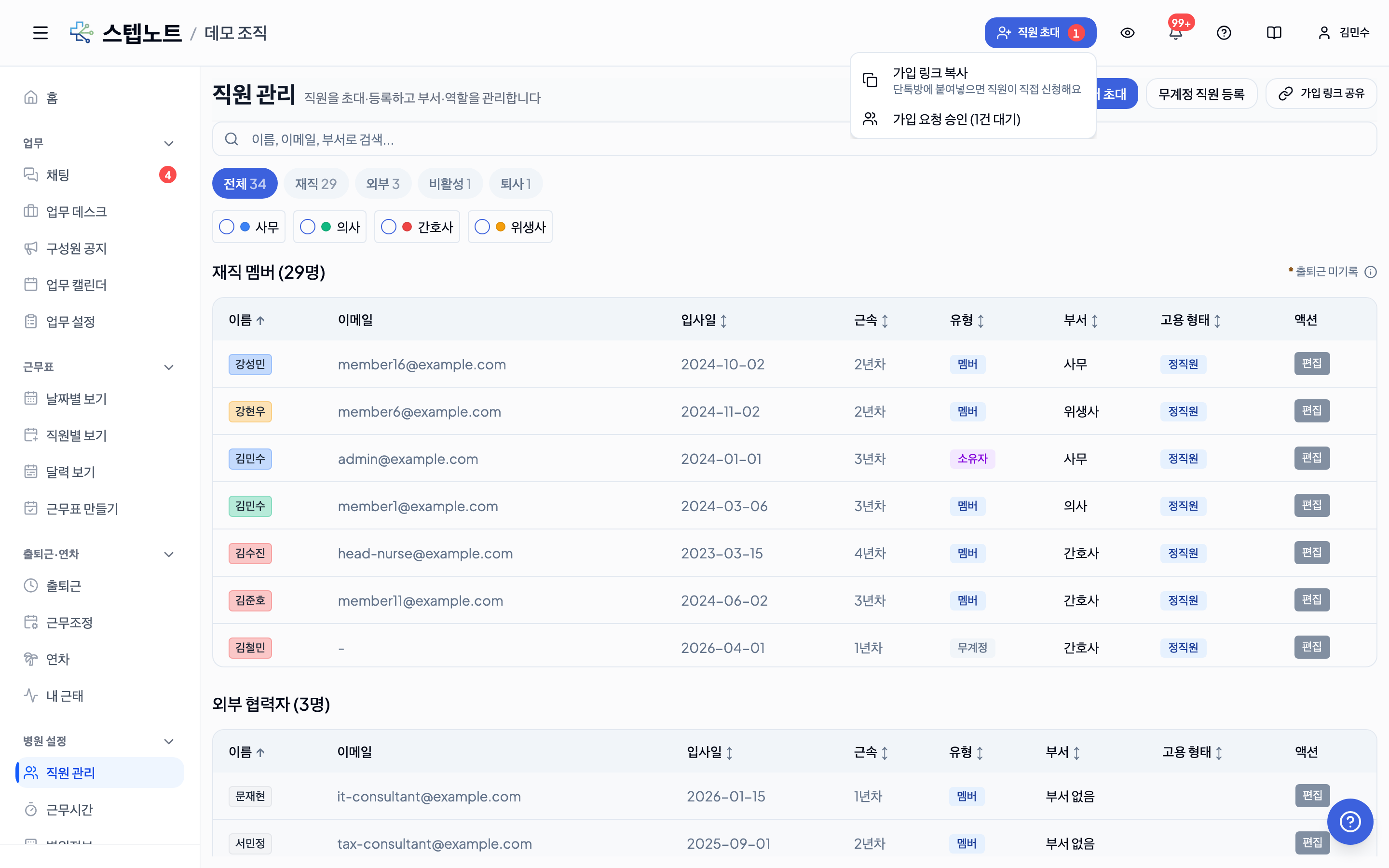
- This button appears automatically when you have fewer than 3 staff members or have pending join requests (visible to admins and owners only). Once you have enough staff, you can hide it with "I have enough staff · Don't show this again" in the menu.
- The clinic home page also shows a banner guiding you through any unfinished setup steps — if inviting staff is the next step, you can copy the signup link straight from the banner too.
- Both places copy the exact same signup link described in 1.3 — the recipient's experience is identical.
1.4 What the Invitee Experiences
Mobile (dedicated bridge)
- Links received via KakaoTalk/SMS automatically open the app launch bridge (
/invite-bridge). - If the app is installed, it launches automatically; if not, an Install the app / Continue on the web prompt appears.
- In in-app browsers such as KakaoTalk, an additional prompt asks the user to reopen the link in an external browser.
Web/Desktop
- Tapping the link opens the Clinic invitation page.
- If the user isn't signed in, they first see Sign in / Sign up buttons; once signed in:
- the clinic name, invited role, invite date, and expiry date are shown, and
- they can choose Accept invite / Decline invite.
- On acceptance, they're taken to the clinic page automatically.
1.5 Checking Invite Status
You can review sent invites in the Invitees section of the Staff Management screen.
| Status | Meaning |
|---|---|
| Pending | Invite not yet accepted or declined |
| Accepted | The staff member accepted the invite and joined the clinic |
| Declined | The staff member declined the invite |
| Expired | Invite expired after 7 days |
For pending invites, you can:
- Re-share the link via the Share invite link dropdown
- Resend (in development)
- Cancel to invalidate the invite.
Things to Keep in Mind
- Invite links are valid for 7 days.
- You can send duplicate invites to the same contact, but only the most recent invite is valid.
- Grant Owner permissions carefully (it includes the ability to delete the clinic).
- External collaborators cannot access any page beyond the permissions they've been granted.
Troubleshooting
- Email not arriving: check the spam folder, or copy the invite link and share it directly.
- KakaoTalk notification message not arriving: a delivery-delay notice appears in the modal. Copy and share the displayed link directly.
- Invite expired: send a new invite to the same contact.
- App won't open from an in-app browser: reopen the link in an external browser (Chrome/Safari).